

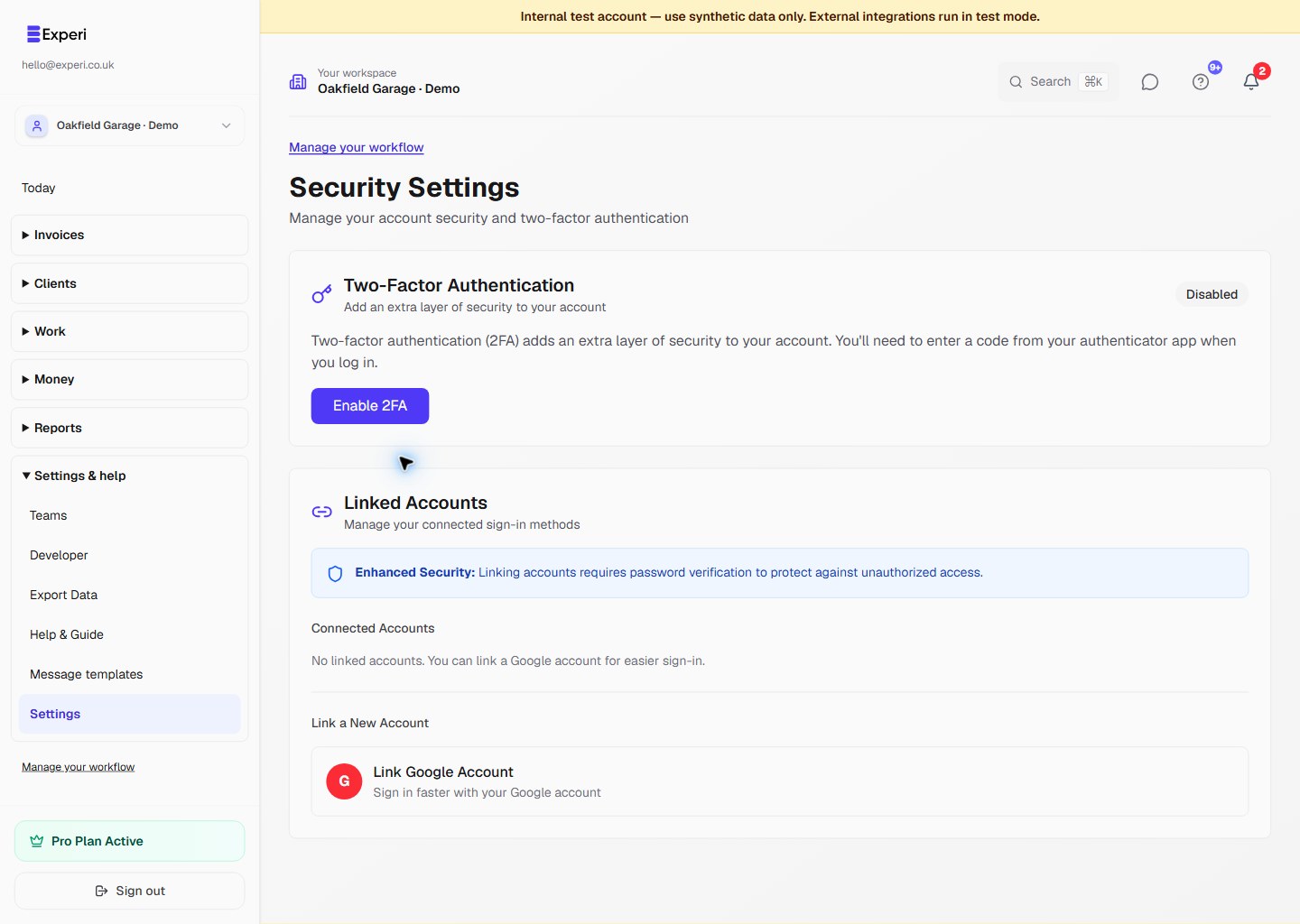
Protect your account with 2FA.
What Is 2FA?
Two-factor authentication requires:
- Something you know: Your password
- Something you have: Your phone
Even if someone gets your password, they can't access your account without your phone.
Enabling 2FA
- Go to Settings > Security
- Click Enable 2FA
- Install authenticator app (if needed)
- Scan QR code with app
- Enter 6-digit code
- Save backup codes
Authenticator Apps
Recommended apps:
- Google Authenticator (iOS/Android)
- Authy (iOS/Android)
- Microsoft Authenticator (iOS/Android)
- 1Password (includes TOTP)
Backup Codes
When enabling 2FA, you receive backup codes:
- Save them securely
- Use if you lose phone
- Each code works once
- Generate new ones anytime
Using 2FA
Every login requires:
- Enter email and password
- Open authenticator app
- Enter 6-digit code
- Access granted
Lost Phone?
If you lose your phone:
- Use backup code to log in
- Disable 2FA temporarily
- Get new phone
- Re-enable 2FA with new phone
Disabling 2FA
To turn off 2FA:
- Log in with 2FA
- Go to Settings > Security
- Click Disable 2FA
- Confirm with password
Warning: Only disable if absolutely necessary.