

No draft appears
Confirm that the message was sent to the exact workspace-specific address under Settings → Automation → Email-to-bill. The workspace must still have Pro access and Email-to-Bill availability. Allow a short processing delay, then refresh Draft Bills once.
Attachment warning
Experi accepts supported PDF, JPEG, PNG and WebP files whose content signature matches the file type. Renaming another file to .pdf or .jpg does not make it supported. Password-protected, corrupt, very large or image-only documents may not yield usable text.
Missing or incorrect values
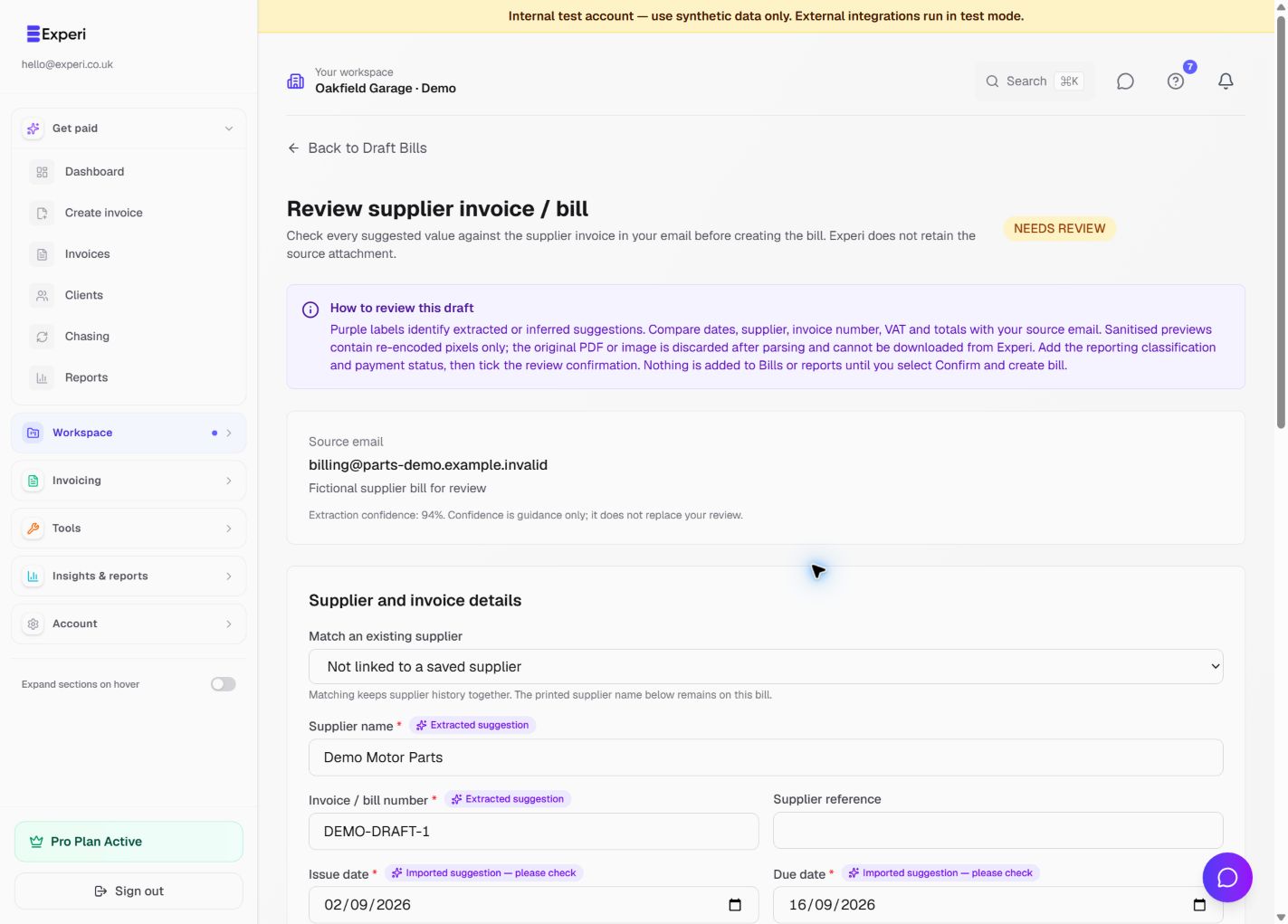
Some supplier emails contain no amount in the message body, and some PDFs arrange text in a way that cannot be read reliably. Open the Draft Bill and enter or correct the values from the supplier's invoice before confirmation. Inferred fields are labelled for review.
Do not resend the same invoice repeatedly while investigating: it can create more than one draft. Delete unwanted drafts. If processing repeatedly fails, add the supplier invoice manually and contact hello@experi.co.uk without emailing secrets or unrelated personal data.