

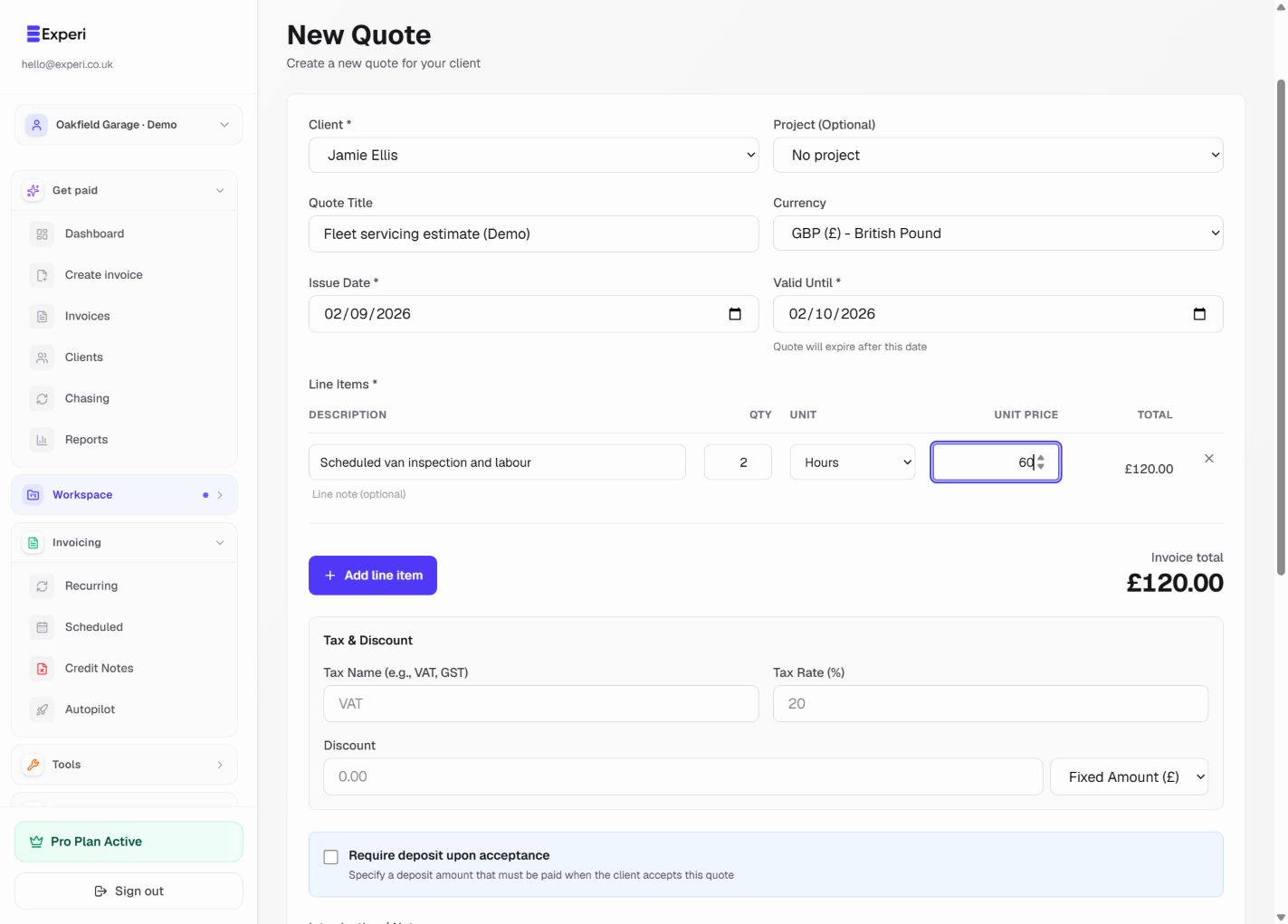
Win more work with professional, detailed quotes.
When to Use Quotes
- New client inquiries
- Fixed-price projects
- Project proposals
- Price estimates
Creating a Quote
- Go to Quotes > New Quote
- Select or add client
- Add line items with descriptions
- Set valid until date
- Send to client
Quote Sections
Line Items
- Service description
- Quantity and rate
- Subtotal per item
Terms and Conditions
Include:
- Scope of work
- Payment terms
- Delivery timeline
- What's not included
Valid Until Date
Set expiry date (typically 30 days) to create urgency.
Sending Quotes
Click Send Quote to email directly to client with:
- Quote PDF attached
- Online viewing link
- Accept/Reject buttons
Best Practices
- Be specific: Detail exactly what's included
- Break it down: Itemize services clearly
- Add options: Offer different tiers
- Set deadline: Valid until date
- Follow up: Chase after 3-5 days