

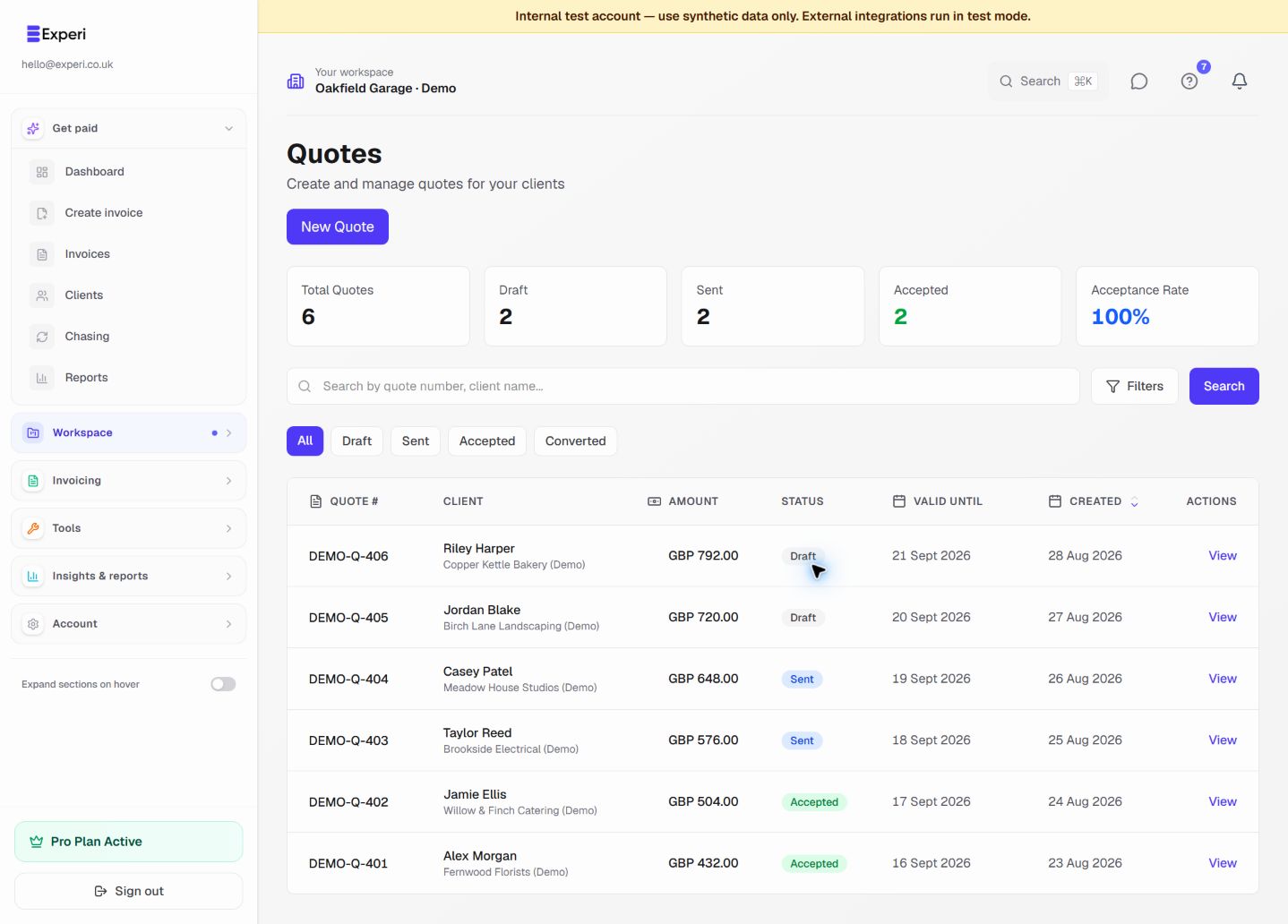
Streamline your sales process with instant quote acceptance.
Client View
When clients receive your quote, they can:
- View quote online (no login required)
- Download PDF
- Click Accept Quote or Reject
- Add optional message
When Client Accepts
You receive:
- Email notification
- Quote status changes to "Accepted"
- Client message (if provided)
- Timestamp of acceptance
Next Steps
- Quote appears in your dashboard
- Click Convert to Project (optional)
- Start work
- Track time
- Generate invoice when complete
When Client Rejects
- Quote status changes to "Rejected"
- See client's reason (if provided)
- Option to revise and resend
Expired Quotes
If valid until date passes:
- Quote automatically marked "Expired"
- Can be extended or duplicated
- Client can't accept expired quote
Following Up
If no response after 3 days:
Hi [Name], just checking if you had a chance to review the quote for [project]? Happy to discuss any questions!
If no response after 7 days:
Hi [Name], following up on the quote sent last week. Is this still something you'd like to proceed with?