

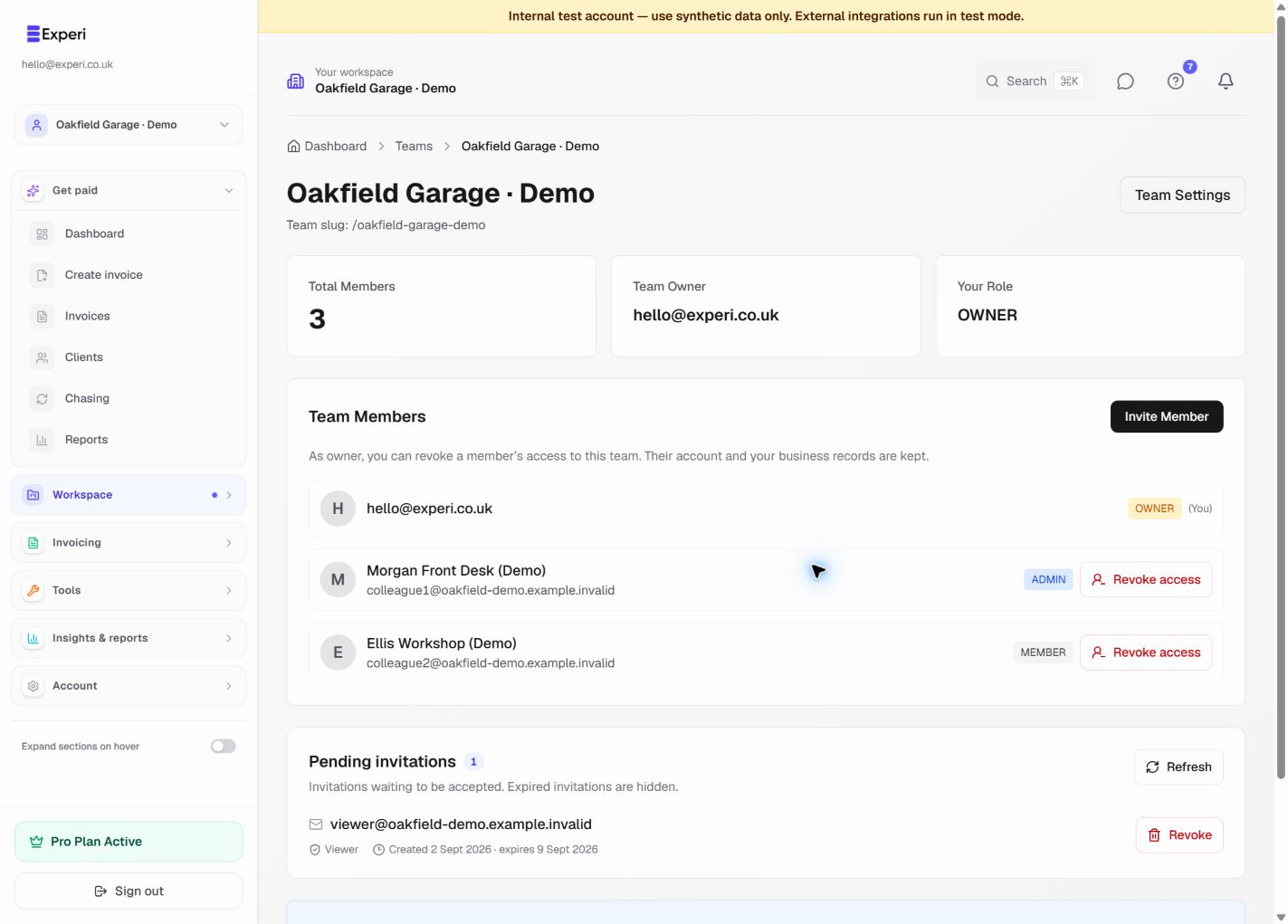
Use individual sign-ins instead of sharing a password. Team creation and invitations are Pro capabilities. Owners and admins can manage invitations; ordinary members and viewers cannot.
Send an invitation
- Open Teams and select the team. On Pro you can also create a team first.
- Choose Invite Member and enter the colleague's email address.
- Choose Member, Admin or Viewer. Members can manage shared business records, not just their own entries. See role permissions.
- Send the invitation. Email verification, sending approval and rate limits still apply.
- Return to the team page and check Pending invitations for the email, role and expiry.
Accept an invitation
The recipient opens the email link and signs in or creates an account using the invited email address. If signed in as someone else, switch accounts first. Review and accept the invitation, then choose Open workspace. Check the workspace name before working.
Invitations expire after seven days. A revoked or expired link cannot grant access. Ask an owner or admin for a fresh invitation if needed; do not forward someone else's invitation link.
Revoke a pending invitation
In Pending invitations, choose Revoke for the correct email and confirm. The link is invalidated. Accepted, expired and revoked invitations are no longer active pending invitations.
Revoking a pending invitation does not remove an existing member. If they have already joined, the actual owner must use Revoke access in the member list.
Owners and admins can review and revoke existing pending invitations even after Pro ends. Existing memberships and records are unaffected by cancelling an unused invitation.