

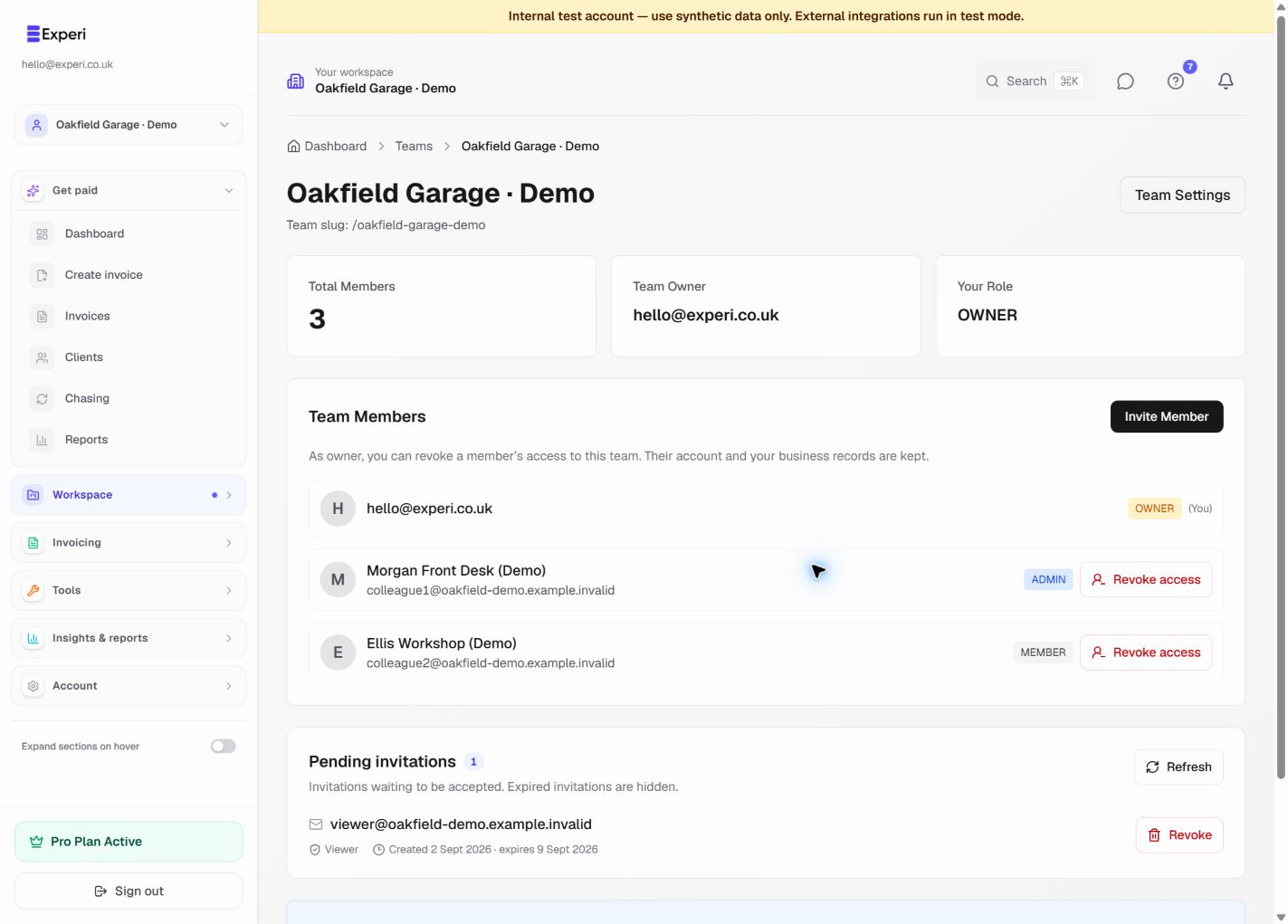
Revoking a team member's access
Only the actual team owner can revoke an existing member's access, including an admin's. Admins may revoke pending invitations but cannot remove existing members. The owner's own membership is protected.
Remove access
- Open Teams and select the correct team.
- Find the person in the member list and choose Revoke access.
- Check the member and team shown in the confirmation.
- Choose Confirm revoke access, or Keep access to cancel.
Wait for the success message. If the action fails or the connection is interrupted, refresh and check the member list before trying again.
What changes
- Membership of this team is removed and subsequent access checks reject that team context.
- Matching pending invitations for the same team and email are invalidated, so an old unused link cannot restore membership.
- A record of the revocation is kept in the audit log.
- The person's account and the business's existing invoices, clients and other records are not deleted.
- Their personal workspace and other team memberships stay unchanged.
If someone belongs to another team with the same owner, they may still access the owner's business through that team. Review every relevant membership when offboarding. Revocation cannot recall previously downloaded PDFs, exports or information already seen.
You can send a fresh invitation later if access should be restored. Revoking access remains available to owners even after Pro ends; you do not need to upgrade just to remove access.
For someone who has not joined, use pending invitation revocation instead.