

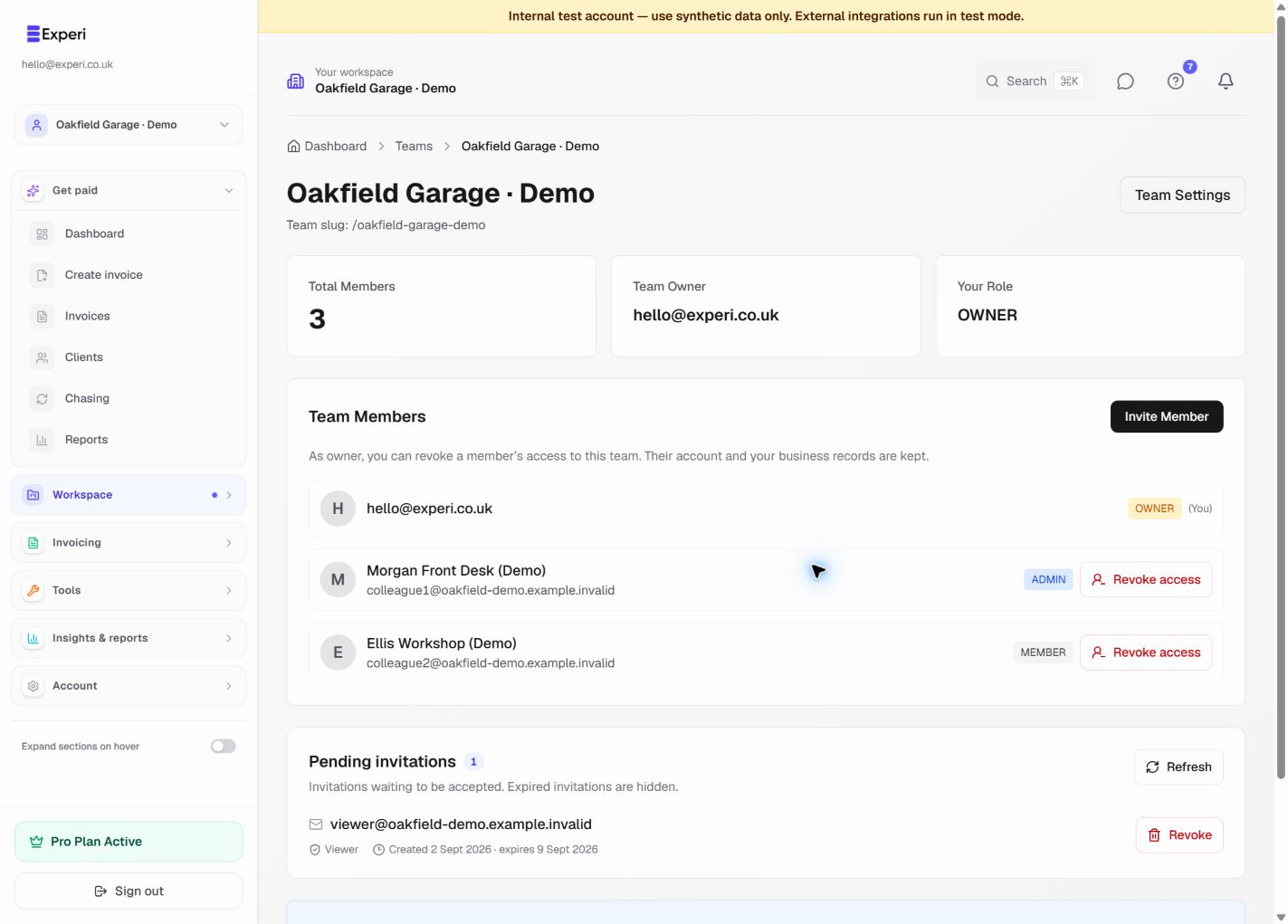
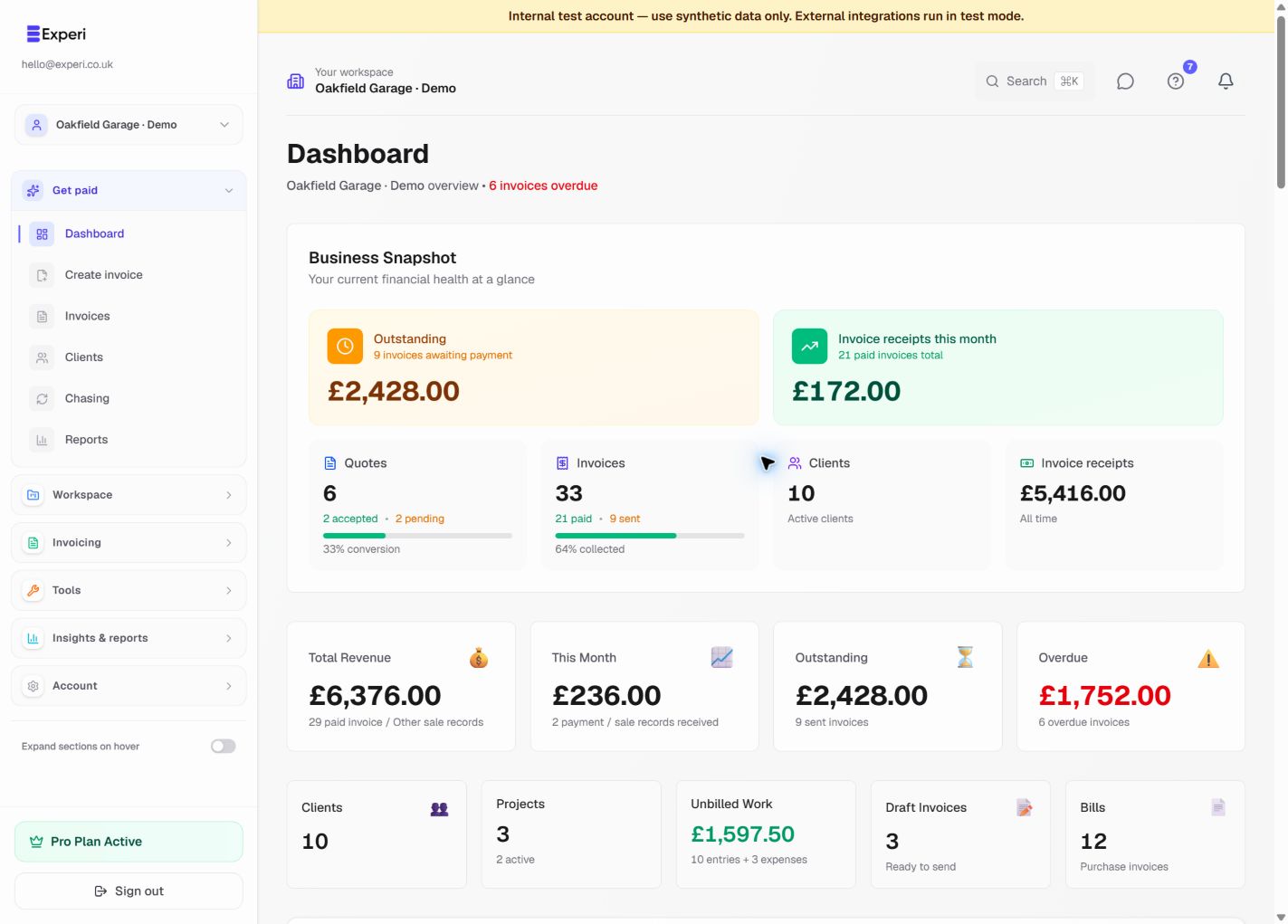
The workspace selector in the sidebar chooses which business you are working with. Check the workspace name and your role in the header before creating or changing records.
Choose a workspace
- Save any unfinished invoice or other work first. Unsaved form entries are not carried into another workspace.
- Open the workspace selector and choose My Business or a team you belong to.
- Experi opens that workspace's dashboard. Check its name and your role in the header.
- Open invoices, clients or reports from there. Other open Experi tabs refresh when you switch.
Invoices, client records, dashboard totals, reports, templates, inventory and business settings use the selected business. Your own account email can still appear as the signed-in user; it is not the business selector.
What a team represents
A team shares its owner's business records with its members. Two teams with the same owner are not separate business databases. Membership is not restricted to a single project or only records you created. Financials portfolio businesses are reporting classifications, not separate access boundaries.
Your login, password and Account & Billing remain tied to your own sign-in account. Business features and branding follow the selected business owner's plan and your permissions.
If a workspace is unavailable
If access has been revoked, Experi asks you to select an available workspace rather than silently showing your personal business. Full accounts can choose Continue to My Business. A team-only account with no remaining membership has no team access; ask the owner if you need a new invitation.
If the business name or figures still look wrong, stop editing, refresh and reselect the workspace. Contact support with the page and workspace name; do not share passwords, invitation links or client financial details in public reports.
See team roles and revoking access.