

Work Together. Know Which Business You're In.
Give colleagues their own sign-in, choose the business workspace you need, and keep control of who can view or change its records.
Try Team InvoicingShared Business Records, With Clear Permissions
A team gives colleagues access to its owner's business records. Select a workspace to see its invoices, clients, dashboard and business settings, with the workspace name and your role visible in the header. Your personal login and subscription remain your own.
See the workflow in Experi
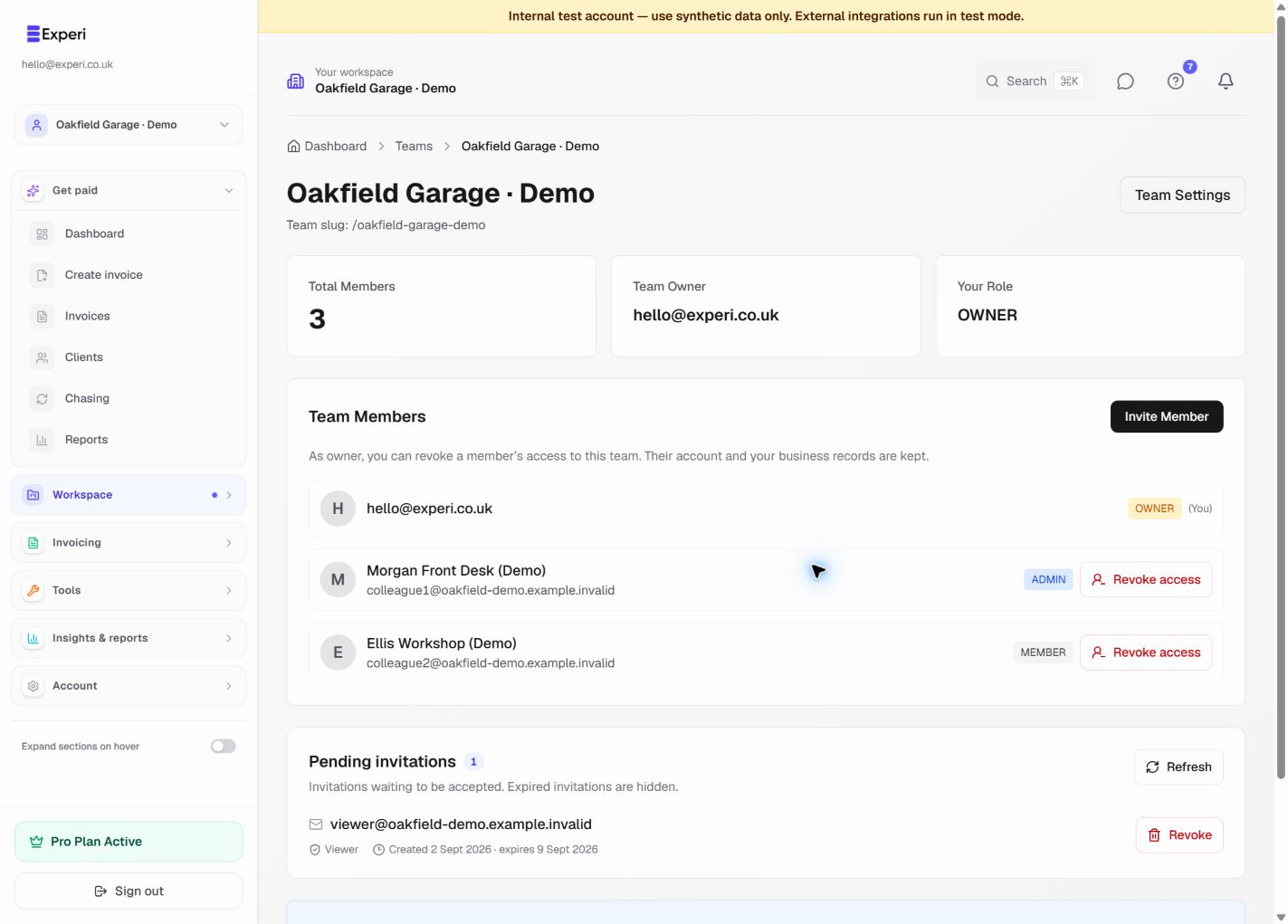
Choose a team role, track the invitation, verify the selected workspace and revoke access when the job is finished.
Pro team creation and invitations; existing access revocation remains available
Key Benefits
Choose Access Deliberately
Invite an admin to help with business settings, a member to manage day-to-day records, or a viewer for read-only access. Members work on shared business records, not just the records they created.
See Outstanding Invitations
Owners and admins can see pending invitations and revoke an unused link. Invitations expire after seven days and must be accepted using the invited email address.
Keep Owner Control
The team owner can revoke an existing member's access, including an admin's, with confirmation. Existing invoices and business records are kept, and access removal remains available after Pro ends.
How It Works
Create a Team on Pro
Open Teams, create a team and invite a colleague with the role they need. They use their own account; never share your password.
Accept and Open the Workspace
Your colleague signs in with the invited email, accepts the invitation and chooses Open workspace. Pending invitations stay visible until accepted, revoked or expired.
Check the Workspace Before Working
Use the sidebar selector and check the header name and role. Save unfinished work before switching: the selected workspace opens on its dashboard.
Review Access When People Leave
Open the team member list and choose Revoke access, then confirm. This removes membership of that team, not the person's account or their other memberships.
Perfect For
Team creation on Pro
Create teams and invite colleagues on Pro. You can still open existing teams and owners can revoke access after Pro ends; other features remain subject to the business owner's plan and each member's role.
View Pricing DetailsFrequently Asked Questions
Does each team have a separate set of business records?
No. Teams grant access to the owner's business. Multiple teams owned by the same person share those business records; they are not independent business databases or project-only access groups. Financials portfolio classifications do not create separate access boundaries either.
Can an admin remove another member?
Admins can invite colleagues and revoke pending invitations. Removing an existing member is reserved for the actual team owner. The owner's own membership is protected.
What happens to invoices when I revoke access?
Existing business records are preserved and the person's account is not deleted. Matching pending invites for this team are invalidated. Other team memberships remain, so review those too if the same person can reach your business through another team.
Does switching workspace change my subscription?
No. Business features follow the selected business owner's plan. Settings → Account & Billing always manages the signed-in person's own account, not a colleague's subscription.
Ready to Try This Feature?
Start using Experi today. All features available to try risk-free.
No credit card required • Start invoicing in under 60 seconds