

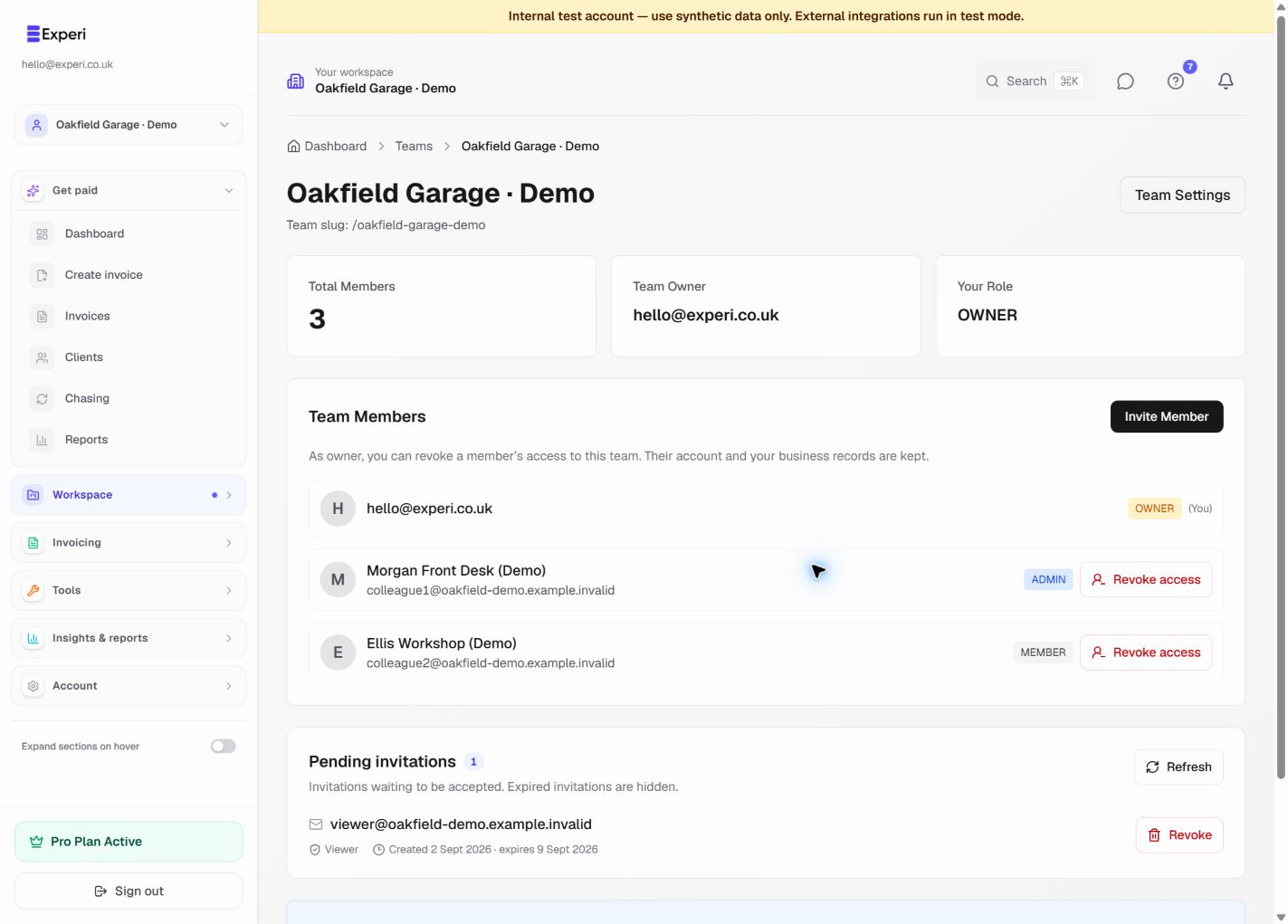
Use individual sign-ins rather than sharing the owner's password. A team grants access to its owner's business records; it is not a filter that shows members only the invoices they created.
Invite deliberately
- As the owner or an admin, open Teams, select the team and choose Invite Member.
- Check the email address and choose the minimum appropriate role.
- Member is for day-to-day shared records. Admin can also help with business settings and invitations. Viewer is read-only.
- Send the invitation and return to Pending invitations to check its role and expiry.
- Ask the colleague to sign in with the invited email address and accept the invitation. The link expires after seven days.
Check the workspace after joining
Select the team in the sidebar and verify the business name and role in the header. Invoices, dashboard figures, clients, inventory and reports should belong to that selected business.
Your login and Account & Billing still belong to your own account. Buying Pro for a colleague's personal business does not upgrade a different owner's team workspace.
Two teams with the same owner share that owner's business records. They do not create separate business databases. Financials portfolio businesses are reporting classifications, not permission boundaries.
Remove access safely
For an unused link, use Revoke under Pending invitations. For someone who already joined, the actual owner must choose Revoke access in Team Members and confirm. Admins cannot remove an existing member.
Revocation retains the person's account, other memberships and the business's historical records. It cannot retract files they previously downloaded. Owners retain the ability to remove access after Pro ends.
See all role permissions, workspace switching and member removal.