

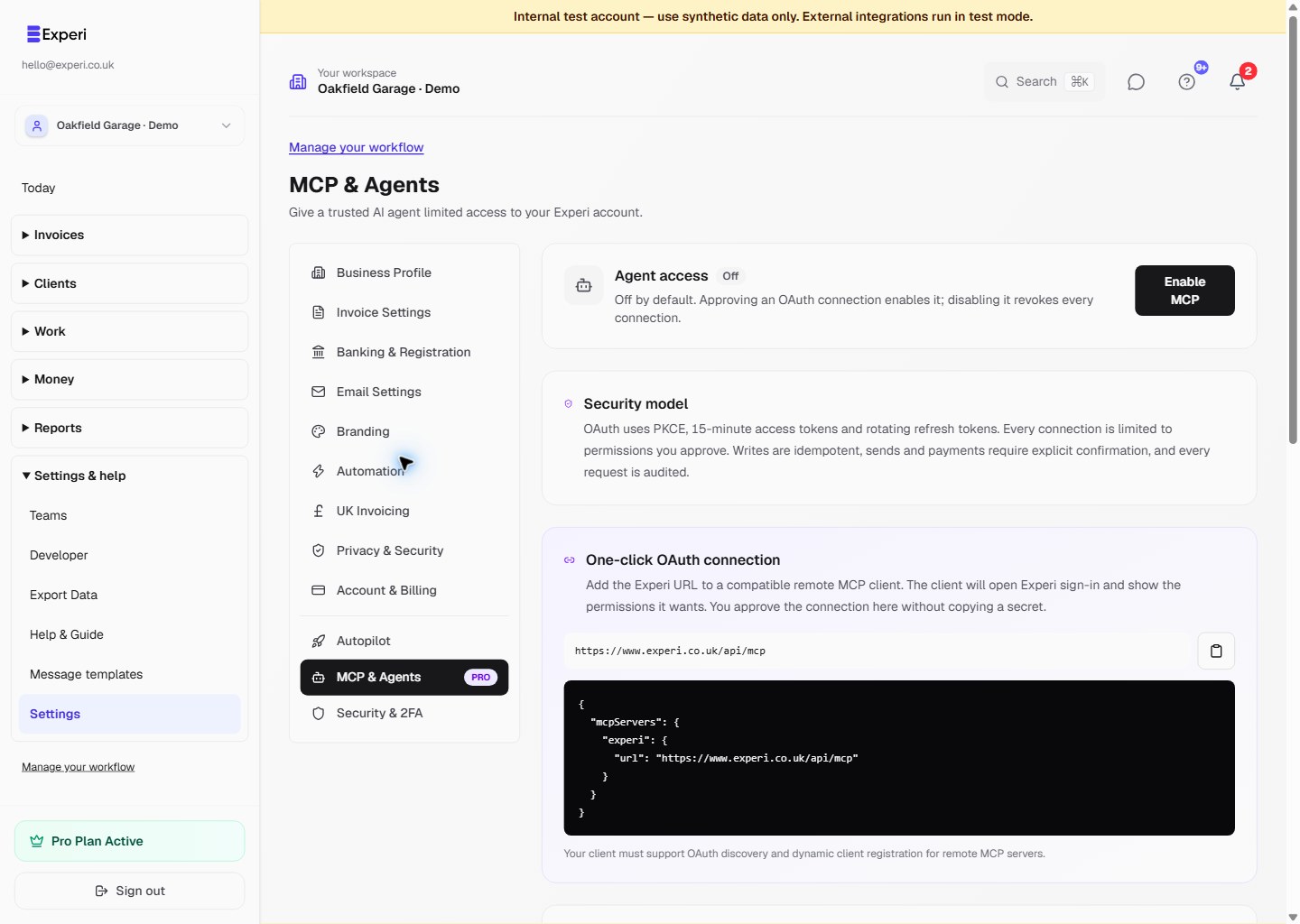
Connect an AI agent with MCP
Experi's remote MCP server lets compatible AI agents read reporting information, manage clients and prepare invoice work through structured tools. MCP is a Pro feature and stays off until the account owner approves a connection or enables manual access.
Connect with OAuth
- In your compatible MCP client, add
https://www.experi.co.uk/api/mcpas the remote server. - Continue to Experi, sign in and check the client name.
- Clear any permission the agent does not need.
- Approve the connection. Experi enables MCP for the owner and returns the client to its OAuth flow.
OAuth uses PKCE, short-lived access tokens and rotating refresh tokens. Your Experi password stays inside Experi, and you do not need to copy a permanent secret into the client. Manual scoped credentials remain available for clients that cannot complete OAuth; store them only in the client's secure server-side configuration.
Choose the permissions
Reporting, client reading and writing, invoice reading and writing, sending, and payment recording are separate scopes. Start with read-only access when the agent only needs to answer questions. Add a write scope for a specific job rather than approving every permission by default.
The agent operates on the owner's current business records. Workspace membership and normal Experi roles still apply; MCP does not create a separate data boundary or bypass Pro, sending or account-safety checks.
Review consequential actions
Creating a client or draft changes your records. Sending an invoice and recording a payment also require an explicit confirmation in the MCP tool call. Use an agent that shows you the recipient, amounts and intended action immediately before it proceeds.
Write operations use idempotency keys so a retry does not silently duplicate a client, invoice, email or payment. This protects against repeated requests; it does not verify that the underlying business decision is correct.
Monitor and disconnect
Open Settings → MCP & Agents to review connections and recent agent activity. Disconnect an individual OAuth client or revoke a manual credential when it no longer needs access. Turning MCP off revokes every OAuth connection and manual credential immediately; turning it on again does not restore them.
Every MCP request is recorded in the activity log, including allowed, denied and failed attempts. Review it as an operational audit trail, alongside the affected invoice or client record.
See business settings and integrations, workspace scope and the MCP feature overview.