

Recurring invoices, scheduled invoices and Stripe Autopilot solve different problems. Decide whether you need a repeated series, a future send date for one invoice, or a connected payment-provider workflow.
Create a recurring series
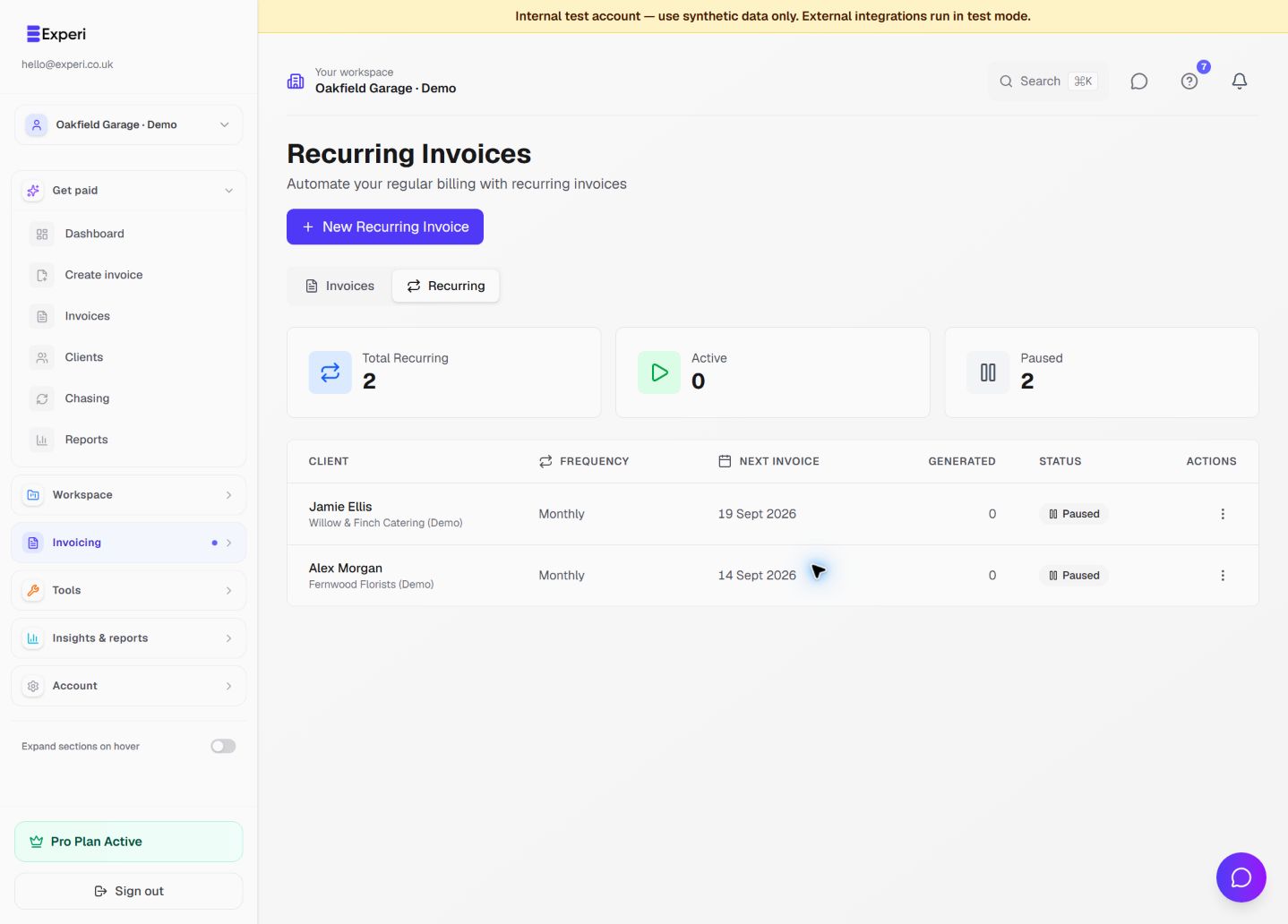
- Open Recurring and choose New Recurring Invoice.
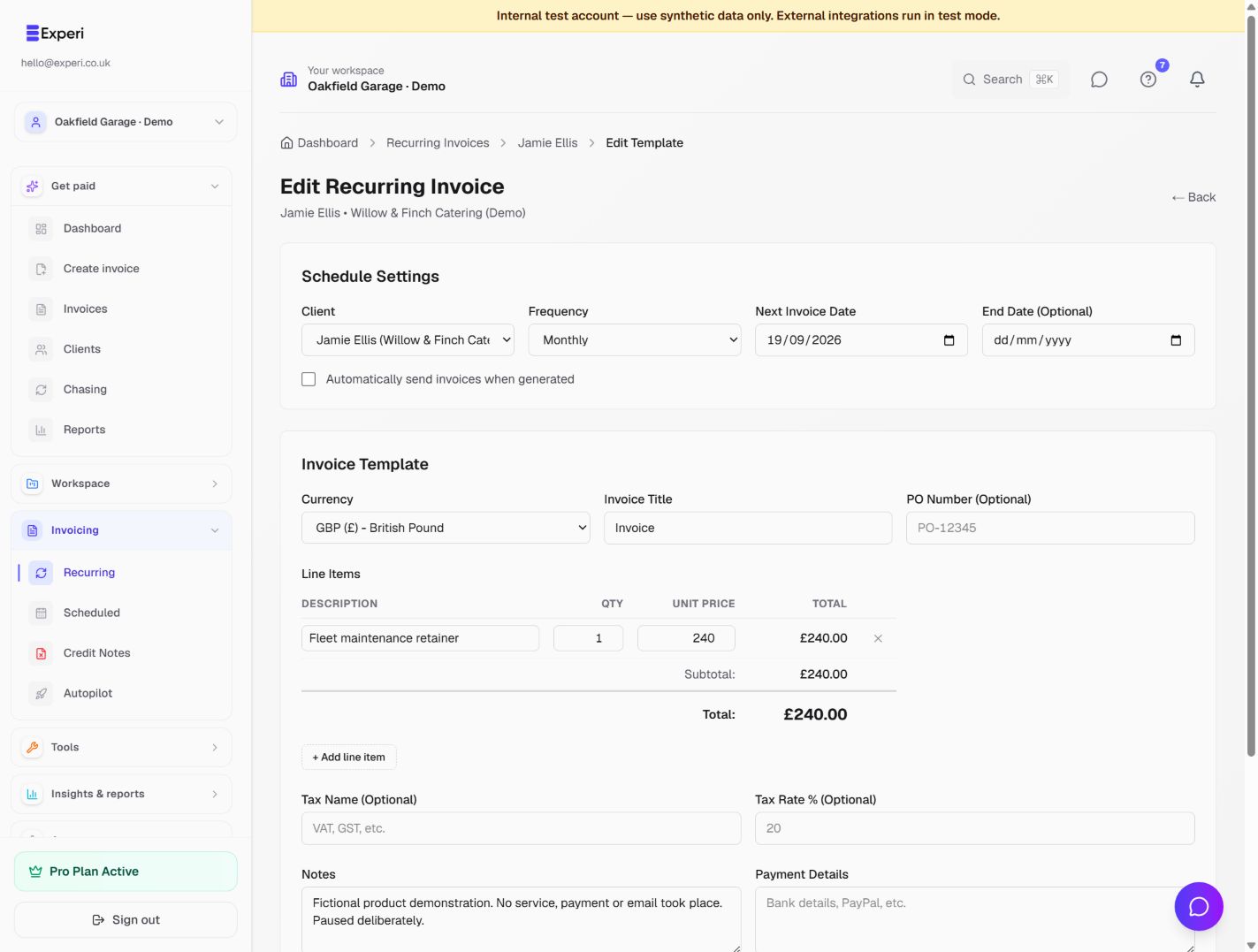
- Select the client and set the frequency, interval, start date and next invoice date.
- Review line items, prices, currency and payment terms. Use descriptions that still make sense next month.
- Review whether the series should generate drafts or automatically send. Automatic sending requires valid recipient details and sending approval.
- Save and inspect its status in the recurring list. Paused means it is not actively generating the series.
- Before activating, check the next date and make sure a manually created invoice has not already billed that period.
Schedule one existing invoice
Use the invoice form's Schedule Send option for a single future delivery. Check the date and time shown by the app before saving. A saved draft with scheduling disabled is not queued to send.
Review Scheduled to check what is due to run. If the job changes, update or cancel its schedule before the send time. Do not assume changing a recurring template edits an invoice already generated from it.
When Autopilot is appropriate
Stripe Autopilot requires its own setup, a connected business account and explicit activation. A Pro subscription alone is not a completed provider connection. Review the settings, customer payment workflow and provider fees before enabling it.
If an expected invoice did not send, check active/paused status, next date, recipient, account approval and any error shown before retrying. See Chasing for overdue follow-up, which is separate from initial invoice delivery.