

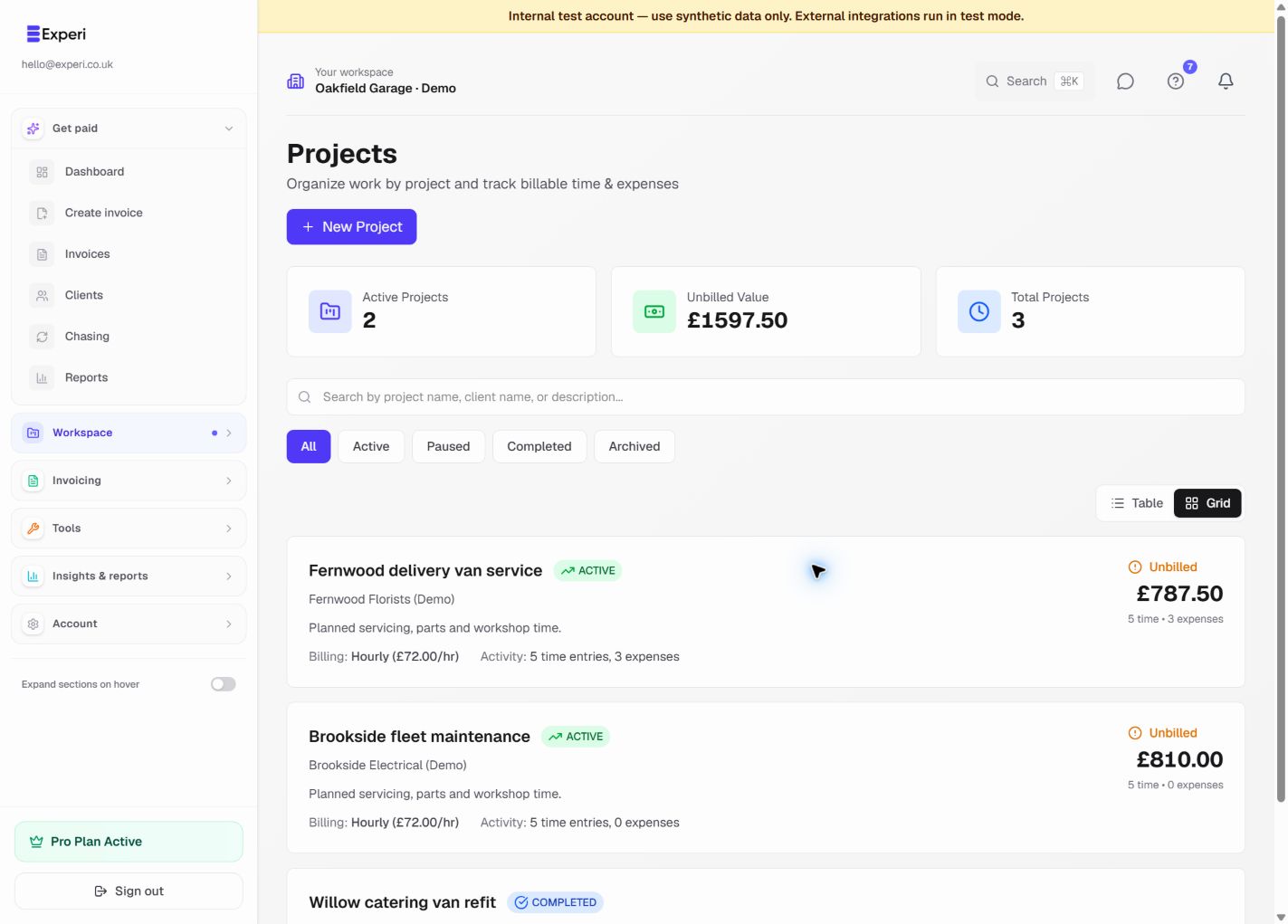
Projects connect a client, a job and its tracked work. Use them for a fleet-service contract, a repair project or any engagement where time and reimbursable costs accumulate before billing.
Set up the project
- Open Projects, create the project and select its client.
- Give it a specific name and review the currency and hourly rate.
- Add useful scope notes and keep its status up to date.
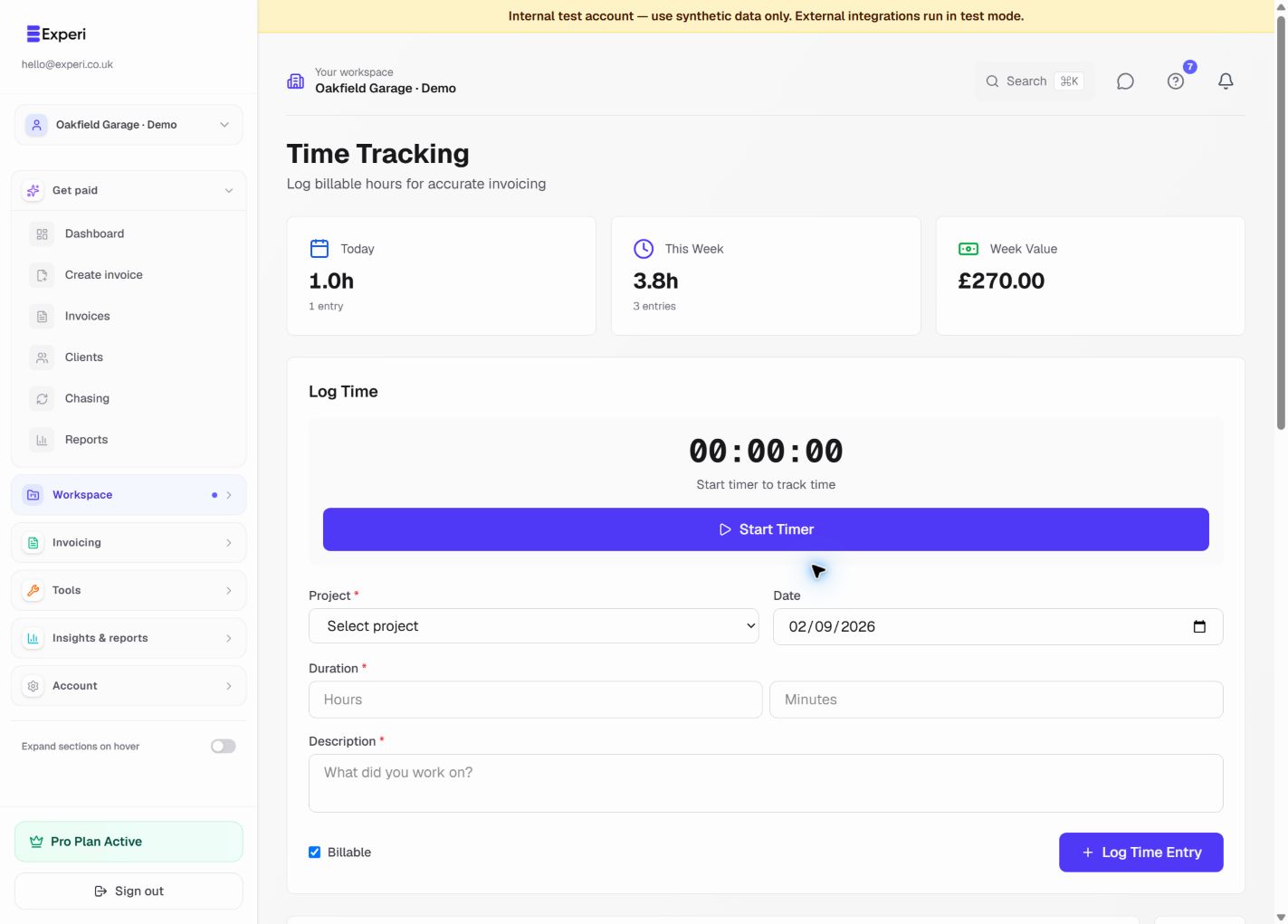
- Open Time Tracking to record work against the project. Review the work date, duration, description and billable setting.
The weekly time summary uses the UK calendar week starting Monday. It is not the last seven days. Entries dated outside this week still remain in the list and in the appropriate unbilled totals.
Add costs deliberately
In Expenses, select a project when the cost belongs to that job. Check the amount, category and date, then select Billable to client only if the client should be charged. An ordinary business expense should not become a customer invoice line by accident.
A supplier bill is a different source record. Do not also log the same purchase as an expense unless you have a deliberate, reconciled reason; duplicating records can overstate costs.
Review and invoice
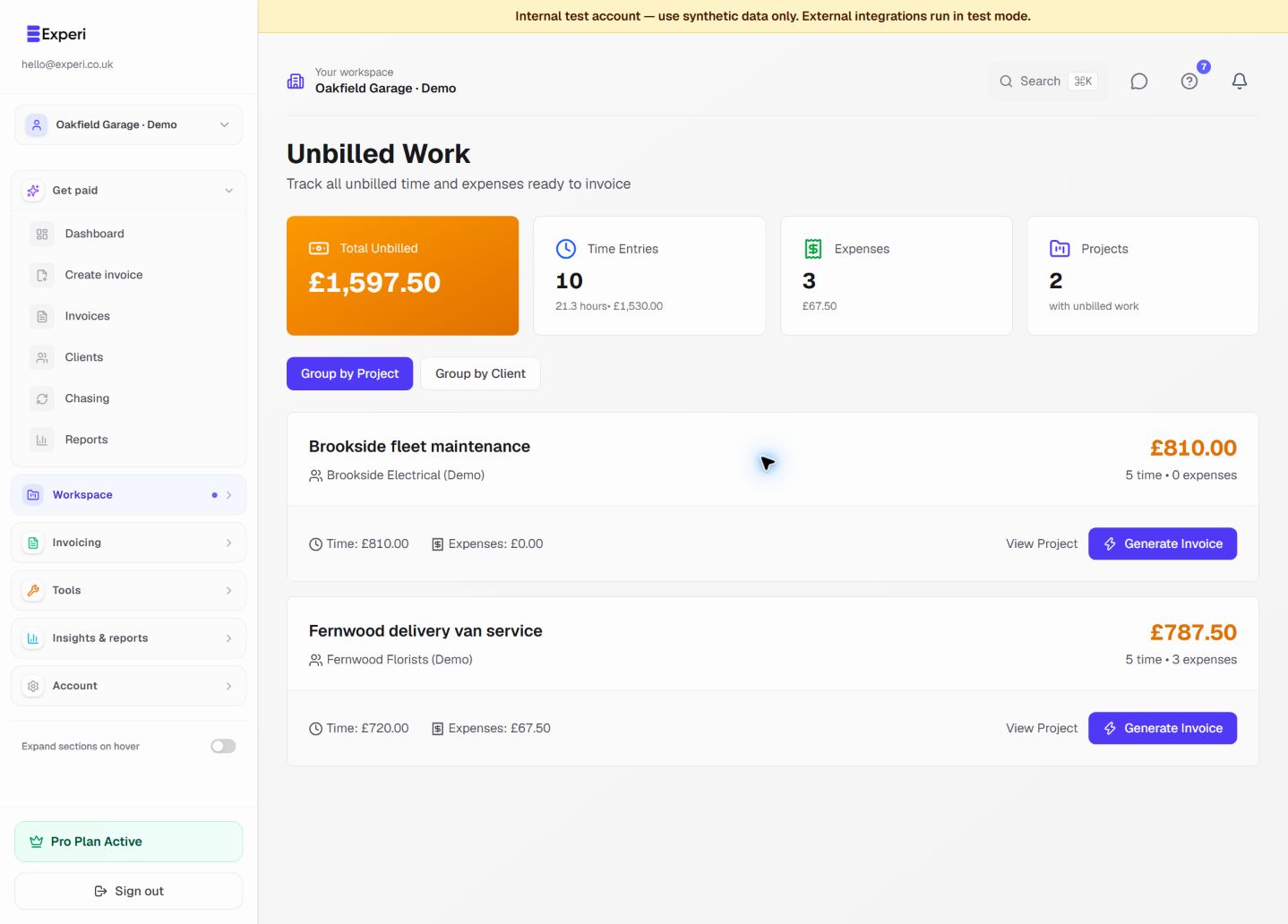
Open Unbilled Work to review the billable time and expenses still available to invoice. Check the client/project grouping, descriptions, quantities and rates before using the invoice action. Review the resulting draft just as you would a manually written invoice.
An entry already linked to an invoice should not appear as newly unbilled work. If an expected entry is missing, check its billable setting, existing invoice link, project status and workspace before logging it again.
Check the result
Return to the invoice to verify totals and delivery status. Then return to Unbilled Work: the remaining list should represent work not yet attached to an invoice. See invoice creation and expense and bill review.