

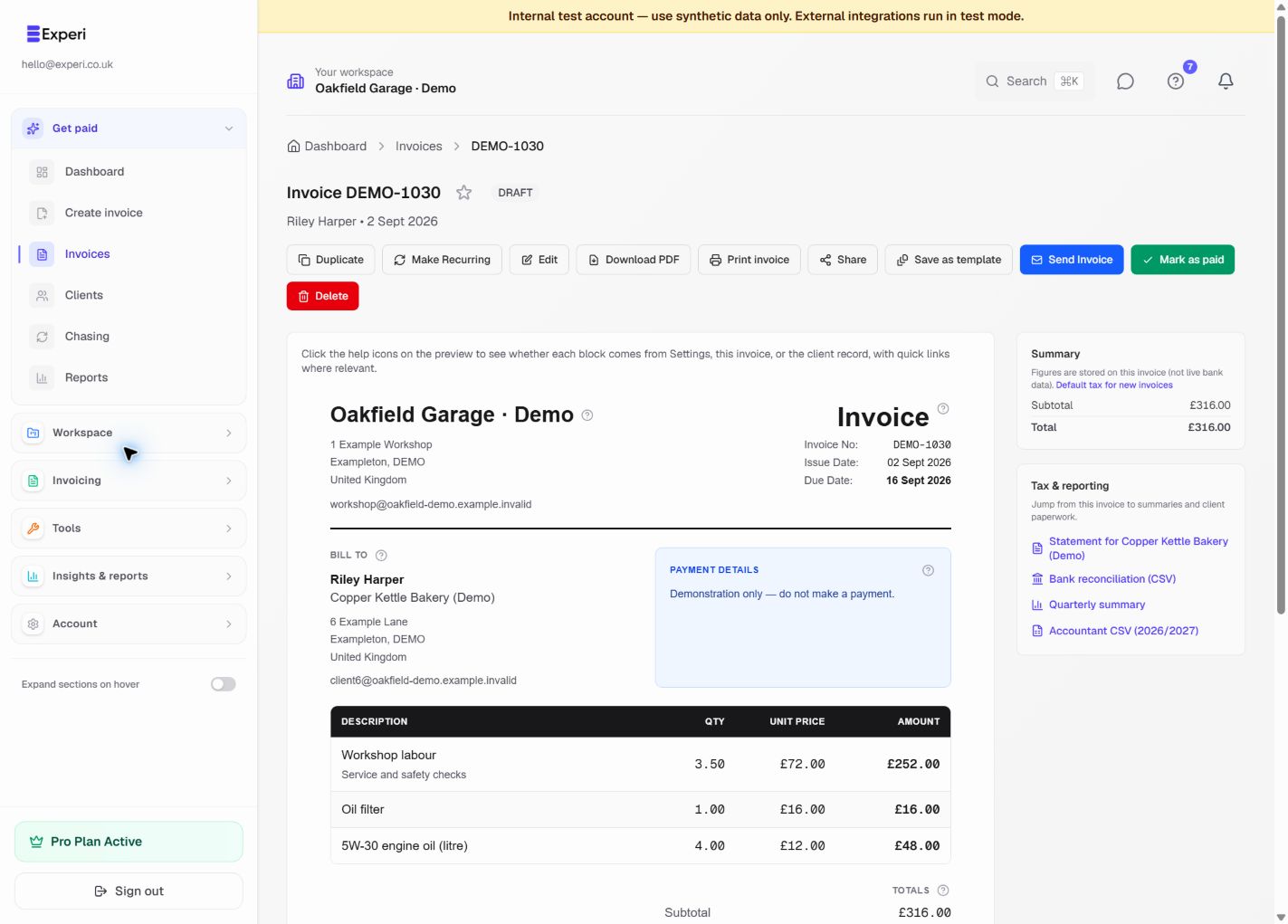
Save the invoice first, then open its detail page. Check the selected workspace, client, prices, totals and payment details before printing. Printing is available on Free and Pro; normal invoice limits and workspace permissions apply.
Choose the right print action
| Action | Invoice status | Linked stock |
|---|---|---|
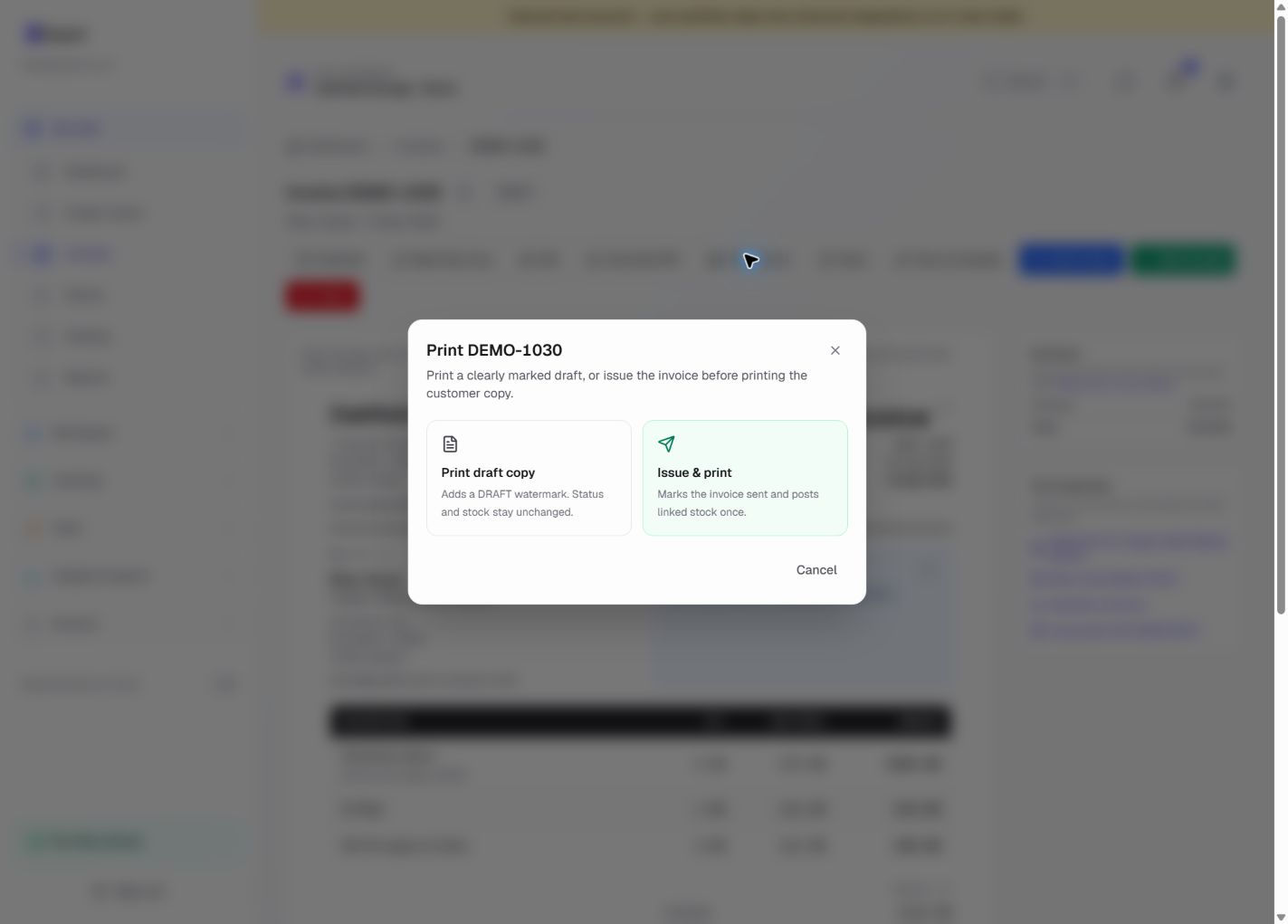
| Print draft copy | Stays draft; PDF has a DRAFT watermark | No deduction |
| Issue & print | Changes a draft to sent before opening the print dialog | Posts stock once |
| Print copy | Sent or paid status stays unchanged | No further deduction |
For a draft, select Print invoice, then choose Print draft copy or Issue & print. A view-only user can print a draft but cannot issue it. For an already sent or paid invoice, select Print copy.
Issue & print does not send an email or mark the invoice paid. It records that you have issued the invoice for physical delivery. If linked stock would become negative, review the warning and explicitly confirm before proceeding.
Browser and printer tips
The invoice opens as a PDF and Experi attempts to open the browser print dialog. If it does not appear, use the PDF viewer's print control or your browser's print command. Allow the invoice tab to open and select the correct printer, paper size and copies. You can also use Download PDF and print the downloaded document.
Cancelling the browser print dialog does not undo an issue. If you already chose Issue & print, check the status and use Print copy to retry; do not create a second invoice. Reprinting does not deduct stock again.
Deleting or crediting an issued invoice does not automatically return stock. Record a genuine customer return or correction explicitly in Inventory.