

Choosing and saving invoice templates
Templates are an optional starting point. A new invoice stays blank unless you explicitly apply a template. Curated and saved templates are available on Free and Pro; normal invoice allowances still apply.
Find the right starting point
- Check the selected workspace and open Create invoice.
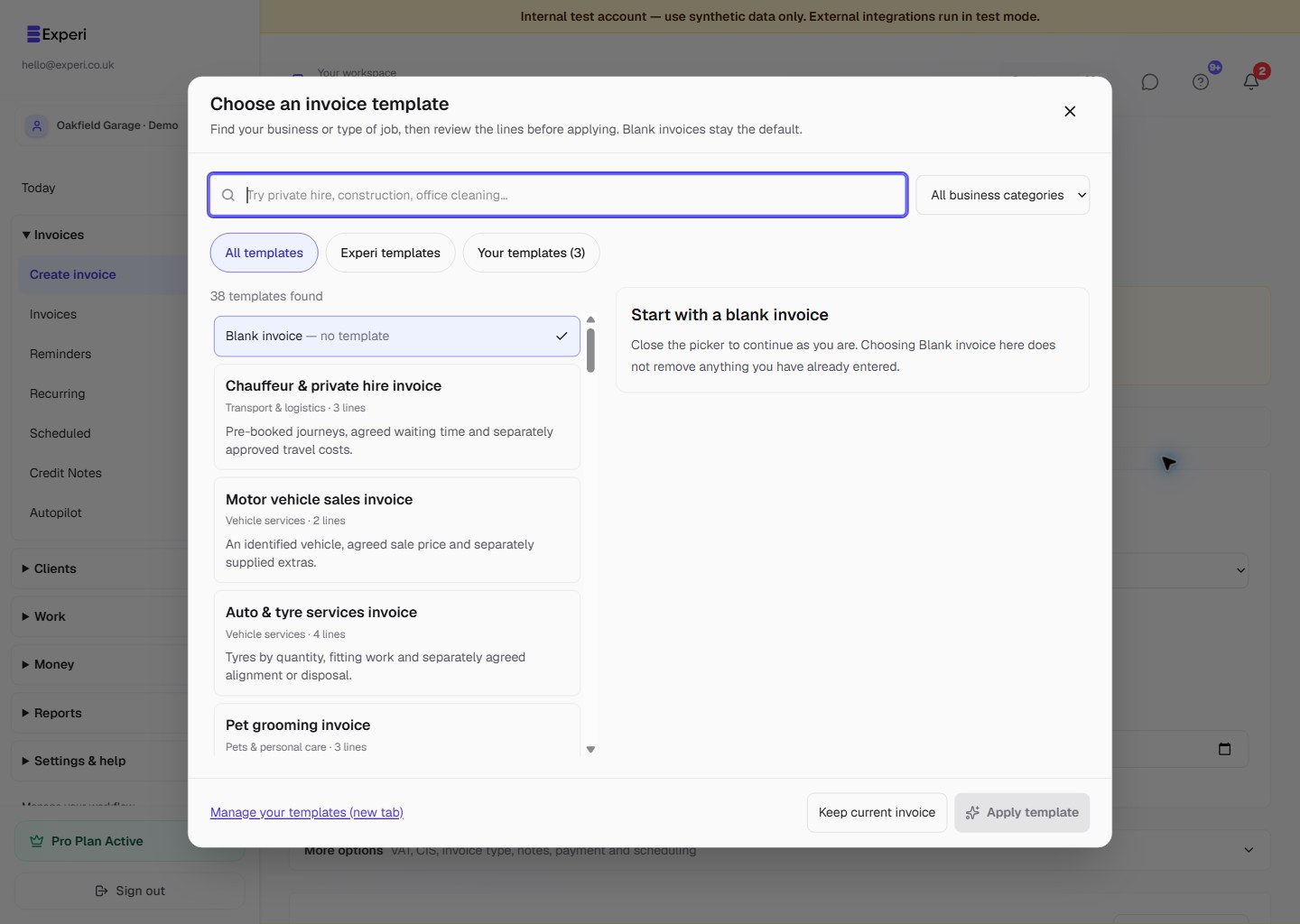
- Beside Line Items, choose Use a template. The picker stays closed until you ask for it.
- Search using your business or job name. For example, private hire, construction, office cleaning, IT consulting or pet walker. You can also filter by Business category.
- Choose Experi templates for curated examples or Your templates for this workspace's saved versions. If nothing matches, choose Clear filters or continue with a blank invoice.
- Select a result to preview descriptions, quantities, units, notes and any saved prices. Selecting a result does not change the invoice.
- Choose Apply template when ready. If the invoice already has content, make a separate Merge, Replace or Cancel decision.
Merge appends the template's line items and reusable notes/footer text, keeping your current invoice title and mode. Replace overwrites the line items, title, mode, notes and footer. Neither copies the customer, invoice number, dates, payments, status or scheduled-send settings.
Keep current invoice, the close button or Escape closes the picker without applying anything. Choosing Blank invoice inside the picker does not erase an existing draft's content.
Review prices and job details
Curated templates leave all prices blank in the application. Public worked examples use fictional details and illustrative prices, not recommended rates. Set your own prices and review quantities, dates, tax settings and placeholder notes before saving or issuing.
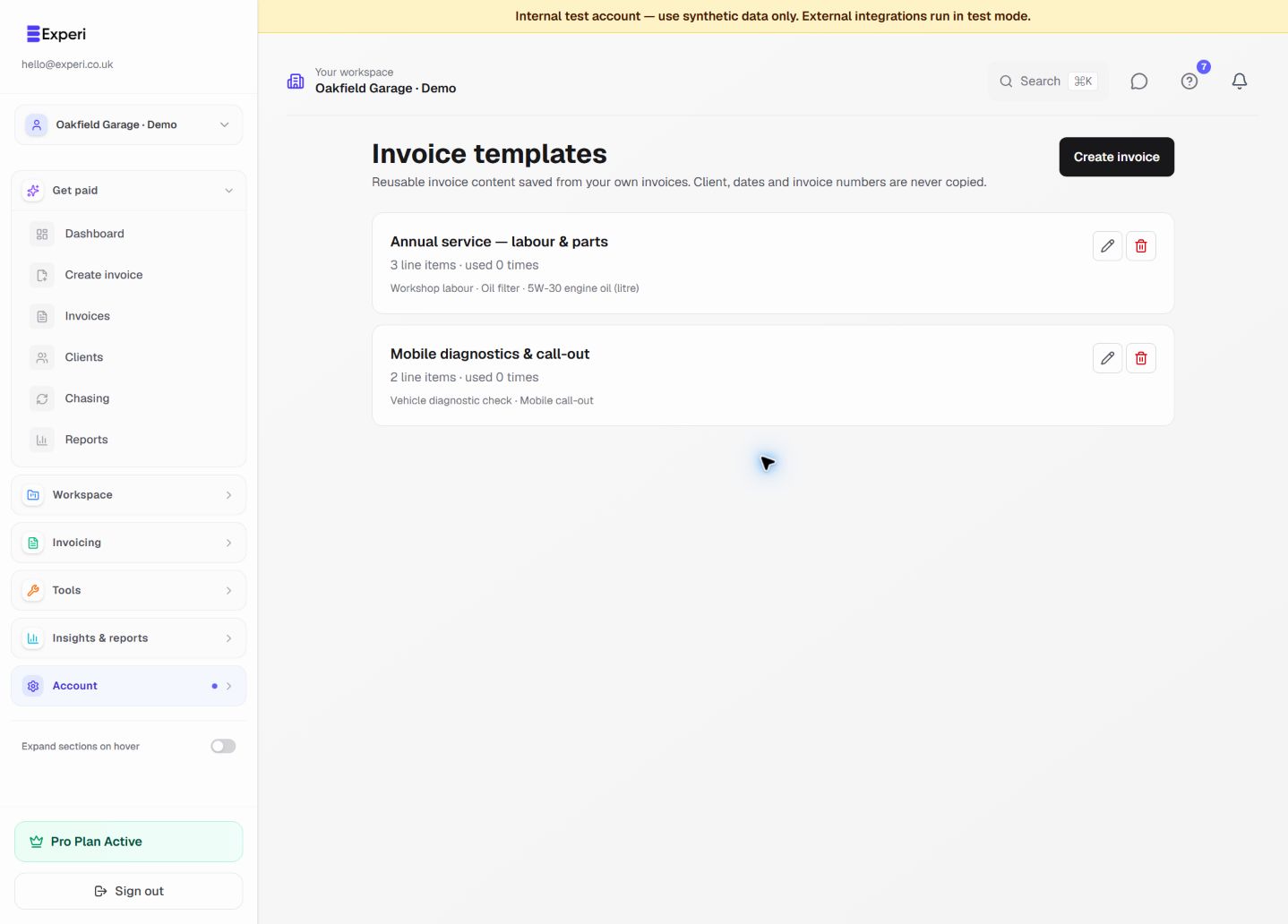
Your saved templates retain your descriptions, quantities, units, prices, reusable text and inventory links where still available in this workspace. Saved prices are numeric amounts used in the new invoice's currency; selecting a different currency does not convert them automatically. Archiving an inventory item does not rewrite historical invoice or template descriptions and prices.
If you arrive from a business or template page, its template is preselected for review, not applied automatically. Choose Review template to inspect it. Change template lets you reopen the picker after applying a template.
Save your own repeat jobs
Open a reviewed invoice and choose Save as template. Give it a recognisable name, such as your regular valet package or monthly office-cleaning service. The source invoice is unchanged. Use Manage your templates to review your saved versions; it opens in a new tab so you can keep your invoice draft open.
Owners, admins and members with the existing invoice permissions can manage templates. Viewer and accountant roles remain read-only. Templates belong to the selected workspace; they are not copied between businesses when you switch workspaces.
Specialist businesses and stock
- Motor vehicle sales: this is a simple sales-invoice starting point, not a VAT margin-scheme calculator, dealer stockbook, finance settlement or part-exchange workflow. Check the transaction's requirements before issuing.
- Waste services: this generic template is not a waste-transfer or hazardous-waste consignment document. Keep required supporting paperwork separately.
- Therapy: use neutral billing descriptions. Do not enter diagnoses, clinical notes or treatment history. The template does not decide VAT exemption.
- Products and services: a curated sample line is not automatically linked to your inventory. Choose the actual stock item from Inventory if you need an operational deduction. Services and drafts do not deduct stock; linked products post when the invoice is first issued.
Browse all invoice examples, read inventory guidance, or see printing invoices.