

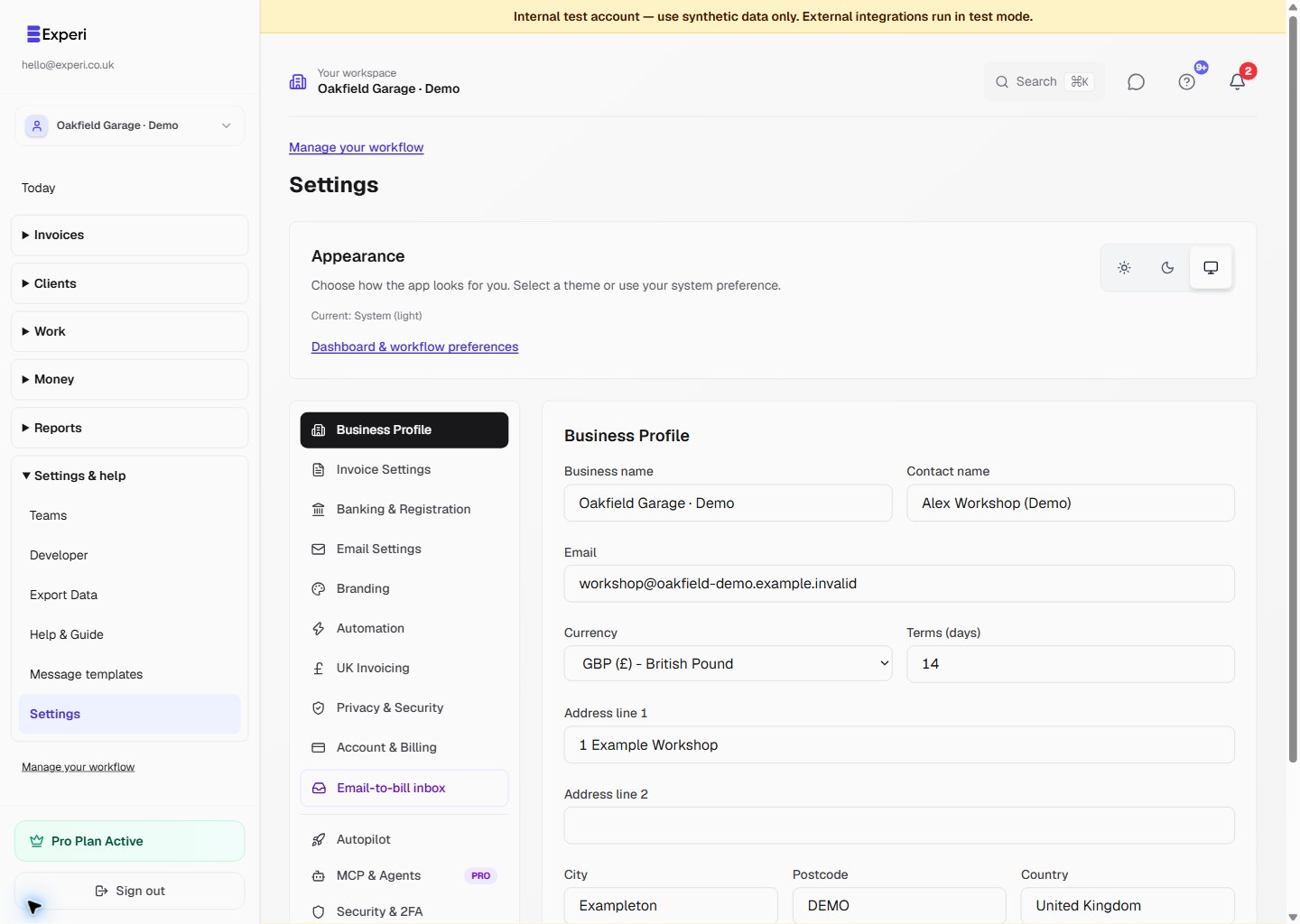
Check the selected workspace before opening Settings. Business profile, branding, invoice defaults and automation settings belong to the selected business. Owners and admins can manage business settings; other roles may see them read-only.
Personal account controls
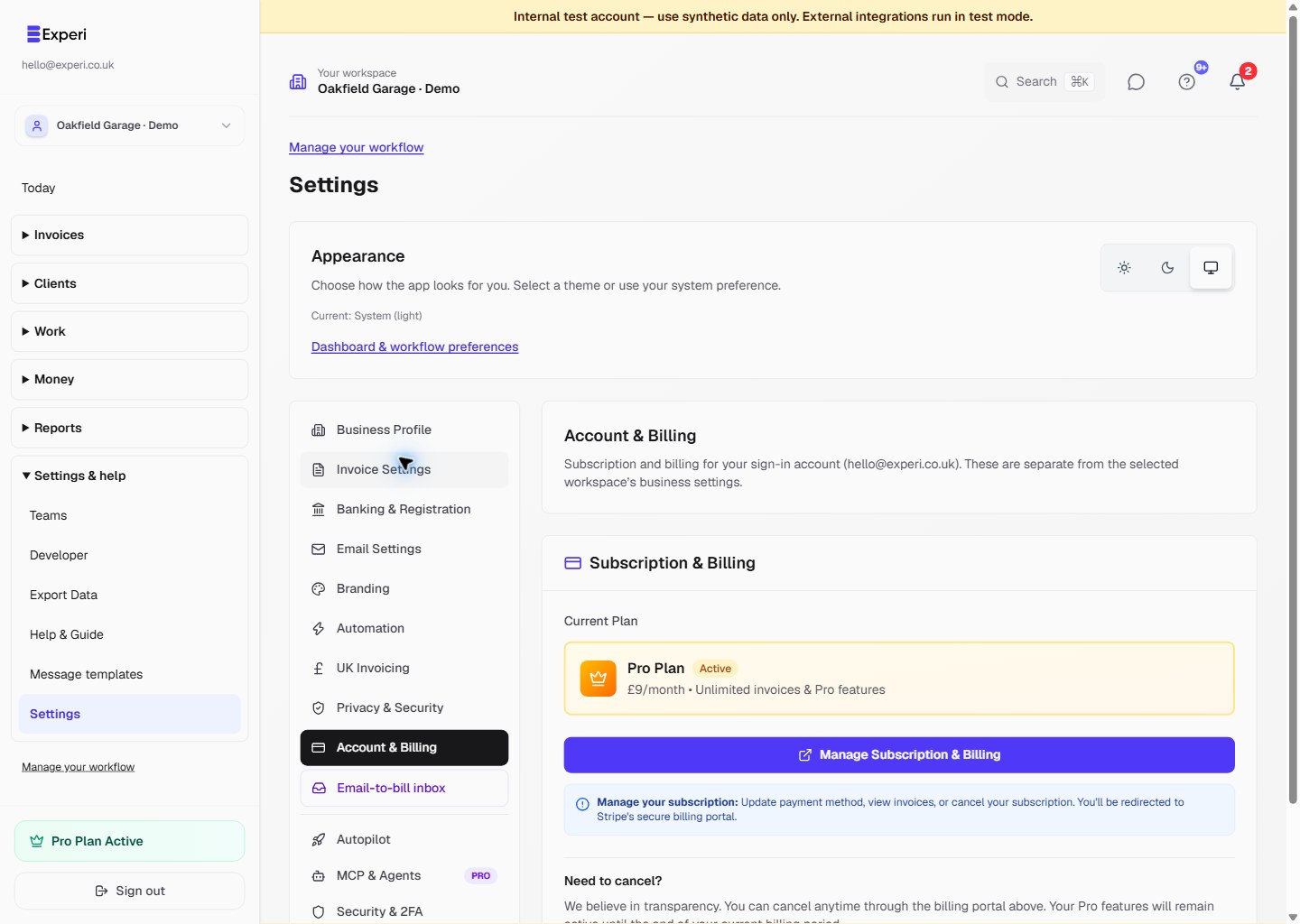
Account & Billing explicitly shows your sign-in email. It manages your own Experi subscription, not the subscription of whichever team you selected. Login, password and account security also belong to you.
To change a team's business plan, its owner should sign in to their own account and manage that subscription. Switching to a colleague's workspace does not grant access to their Stripe billing portal or password.
Reusable content and access
Manage saved invoice templates through Settings → Invoice templates or the invoice template selector. Templates and inventory use the selected business and invoice permissions; they are not personal-only shortcuts.
Use Teams for pending invitations and member access, not password sharing. Only the actual team owner can revoke an existing member.