

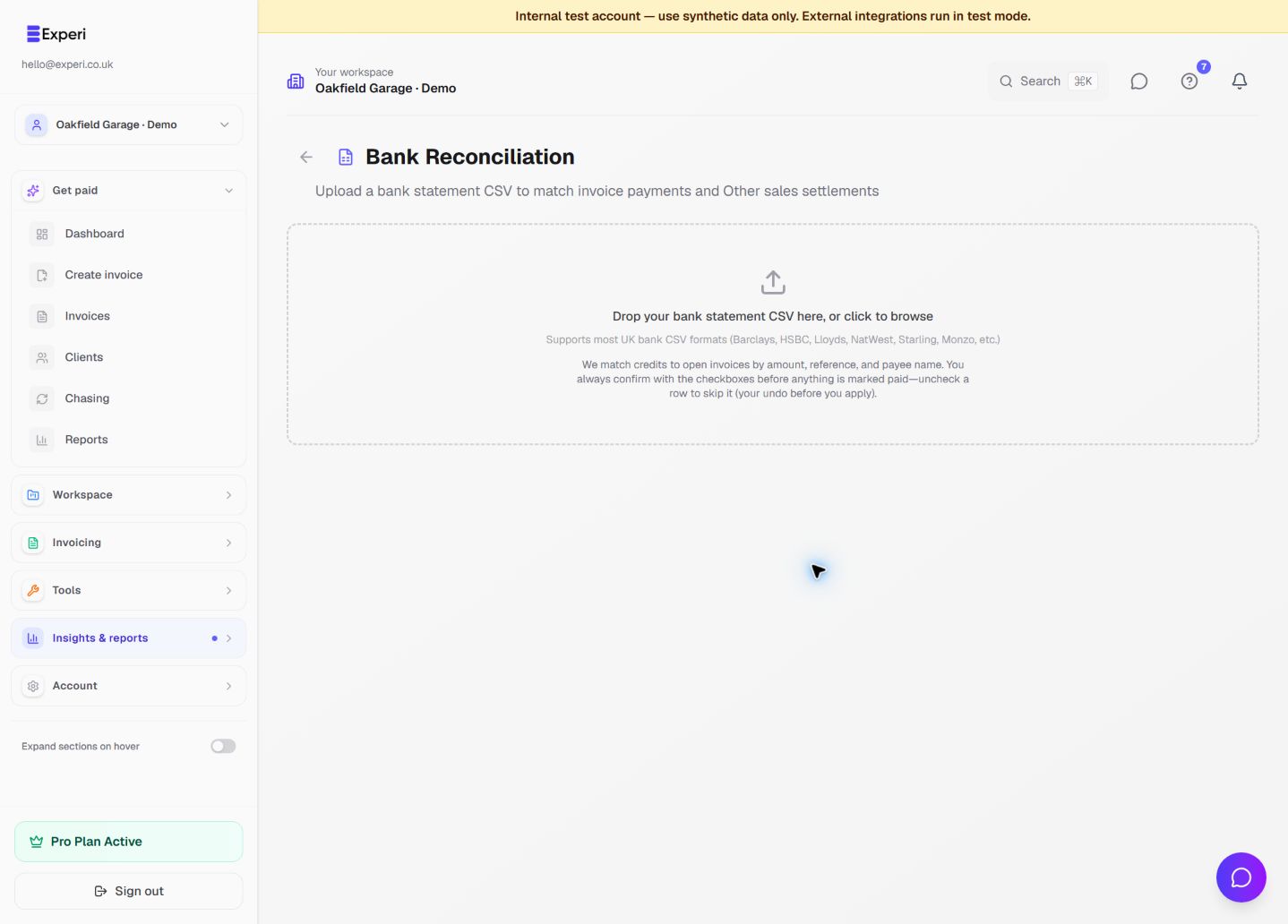
A bank CSV can help match money received to an invoice, but a suggested match is not a payment confirmation. Review the source statement, amount, reference and client before applying it.
Prepare the file
Open Bank Reconciliation and read the supported CSV guidance. Export a suitable statement file from your bank and keep it private. Do not upload a screenshot in place of a transaction CSV or reuse a file from the wrong business.
Review suggestions
- Upload the file and wait for the matching results.
- Review each suggested invoice and its confidence label. A high match is still a suggestion.
- Deselect anything ambiguous, already recorded or belonging to another invoice.
- Check the total selected before confirming the matched payments.
- Inspect the affected invoice's payment history and status after confirmation.
The page offers an undo action for the most recent applied batch where supported. Review the result immediately; do not use a second import to try to reverse an incorrect match. Keep your original bank evidence.
CSV reconciliation is separate from live bank feeds. Do not infer that a bank is connected merely because the CSV page is available.
Export useful records
Open Export Data in the selected workspace. Choose the available record type and period, then inspect the downloaded file's headings, dates and currency before sharing it securely.
Financials has a separate Export section where that feature is enabled. Tell your adviser which export and basis you used; different reports may group records by different dates or include different sources.
Keep client details and financial exports out of public support messages. If an export seems incomplete, check filters, soft-deleted records and workspace access before recreating transactions.