

Use this checklist to move from an empty account to a business you can review confidently.
Before you start
Have your business contact details, payment instructions and one client's billing details ready. Check Settings → Account & Billing for your own plan. New accounts receive a 14-day Pro trial without a card; Free allowances are lifetime totals, not monthly resets. See current pricing.
Set up and make a first draft
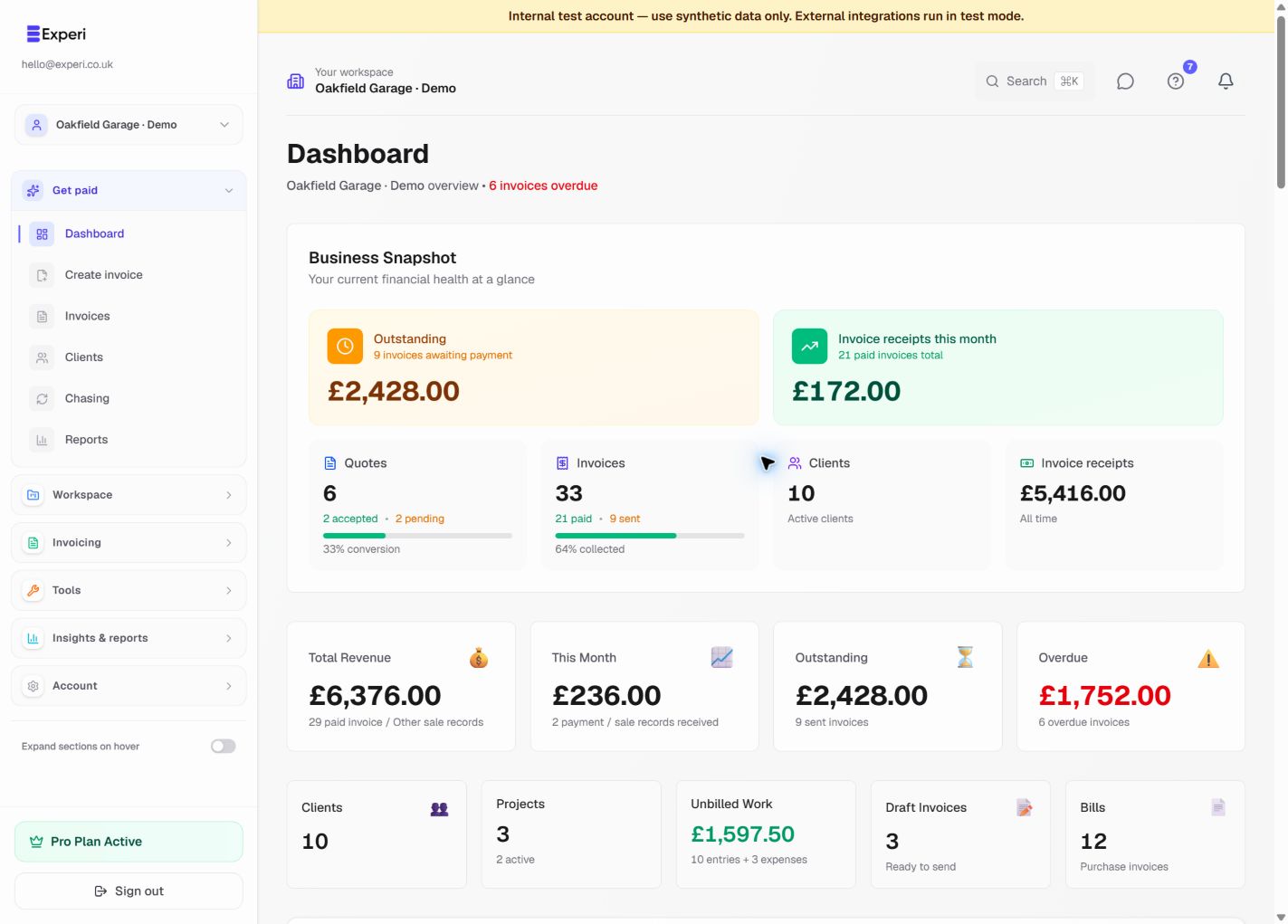
- Check the business name in the header. If you belong to a team, choose its workspace before entering records. Your sign-in email is not the workspace selector.
- Review the business profile in Settings: name, address, contact details, currency and payment instructions. Only enable tax options appropriate to your business.
- Open Clients and add the person or business you bill. Check the billing email carefully.
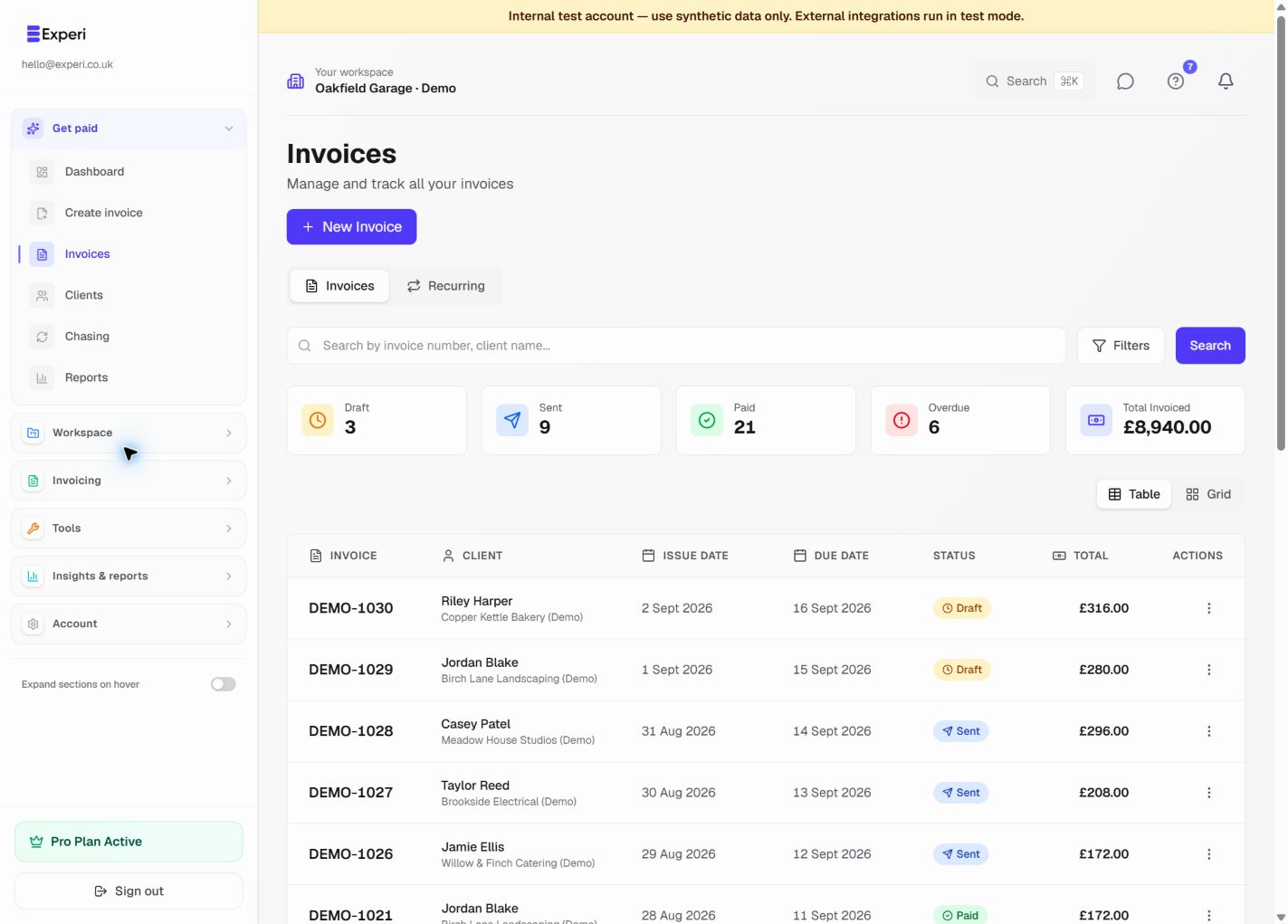
- Choose Create invoice, select that client and enter the work, quantity, unit and price. A blank invoice is always a valid starting point.
- Save the draft. Open it again and check the client, dates, totals and payment instructions. Creating a draft does not email your client.
- Use Print → Print draft copy if you want to review a paper layout without issuing the invoice.
Read the dashboard
Outstanding means issued invoices still awaiting payment; it is not revenue already collected. Drafts are unfinished documents. Review overdue invoices in Chasing, and use Unbilled Work for billable time and expenses not yet attached to an invoice.
An empty panel can mean there are no relevant records, or that the feature needs Pro or workspace access. Verify the workspace before trying to recreate missing data.
Build the routine
Start with one real workflow and add tools when you need them: templates for repeat jobs, inventory for parts, projects for tracked work, and reminders for overdue invoices. Do not enable automated sending until client emails, due dates and business sending approval are correct.
Next: a garage job from start to finish, workspace switching or the product tour.