

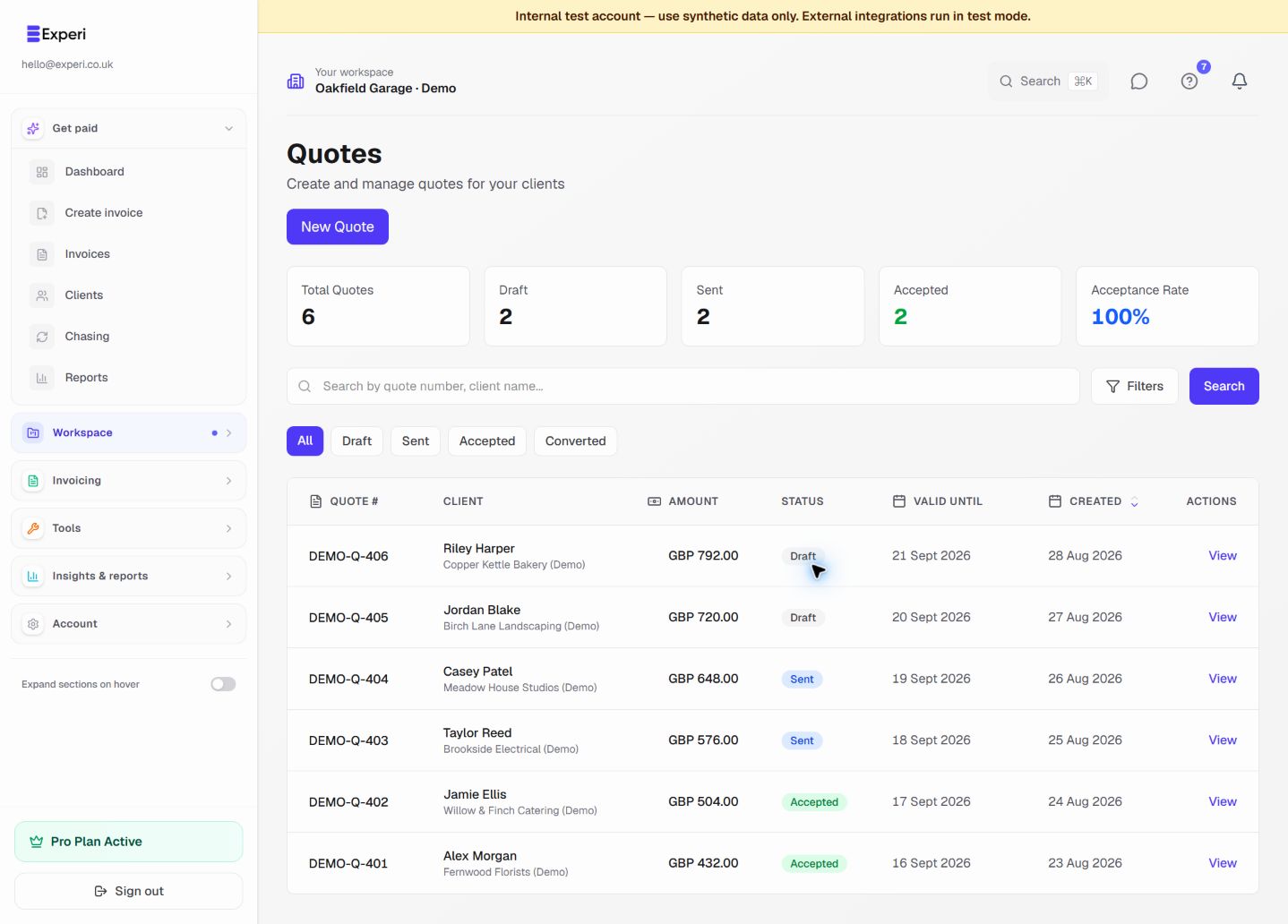
A quote describes proposed work and price. An invoice requests payment for work being billed. Keep those stages separate: sending or accepting a quote does not mean the customer has paid.
Prepare and review
- Open Quotes and choose the new-quote action.
- Select the correct client, enter a descriptive title, and check the issue date and validity period.
- Add the work and prices. Use separate descriptions for labour, materials and optional work where that makes the scope clearer.
- Check notes, terms and any deposit information before saving the draft.
- Reopen the draft and review the recipient, amount and expiry before sending it. Sending approval and normal account limits still apply.
Only draft quotes can be edited directly. If the agreed scope changes after sending, review the available quote actions and keep an understandable record of the change rather than silently rewriting what the customer saw.
Track the decision
The quote list separates drafts, sent and accepted work. Open the individual quote for its status and history. A customer's acceptance records agreement to that quote; it is not a bank receipt.
Convert agreed work
Open an Accepted quote and choose Convert to Invoice. Review the resulting invoice's client, dates, line items and payment instructions before issuing it. Check for an existing conversion first so you do not create an unrelated duplicate invoice.
If conversion is unavailable, confirm that the quote is accepted, you have permission to create invoices, and your plan allowance has not been exhausted.
For tracked work, use a project and unbilled-work workflow. For a fuller written scope, review service agreements. Finish with the invoice printing guide or the normal email send flow.